Blog
What’s New in the Free DJ App: Smarter Picks, Vibe Presets and Watch & Learn
Nov
The free Flashback Events DJ app has come a long way since we first introduced it. It still lives in your browser, it still costs nothing, and your music files still stay on your computer. What has changed is how much the app can tell you about each song, and how much of the mixing it can do for you.
This post is a look at what is live right now at dj.dancepartylights.com: smarter next-track picks that explain themselves, one-tap vibe presets for Party Mode, a set energy graph, a library health report, whole-library export to Rekordbox, energy and mood scores, on-device genre suggestions, a shared community song database, and Watch & Learn. For the full tour of the app, start with our earlier guide, Meet the Free DJ App That Picks Your Next Track (and Now Mixes Your Party).
Every Song Gets an Energy Score and a Feel
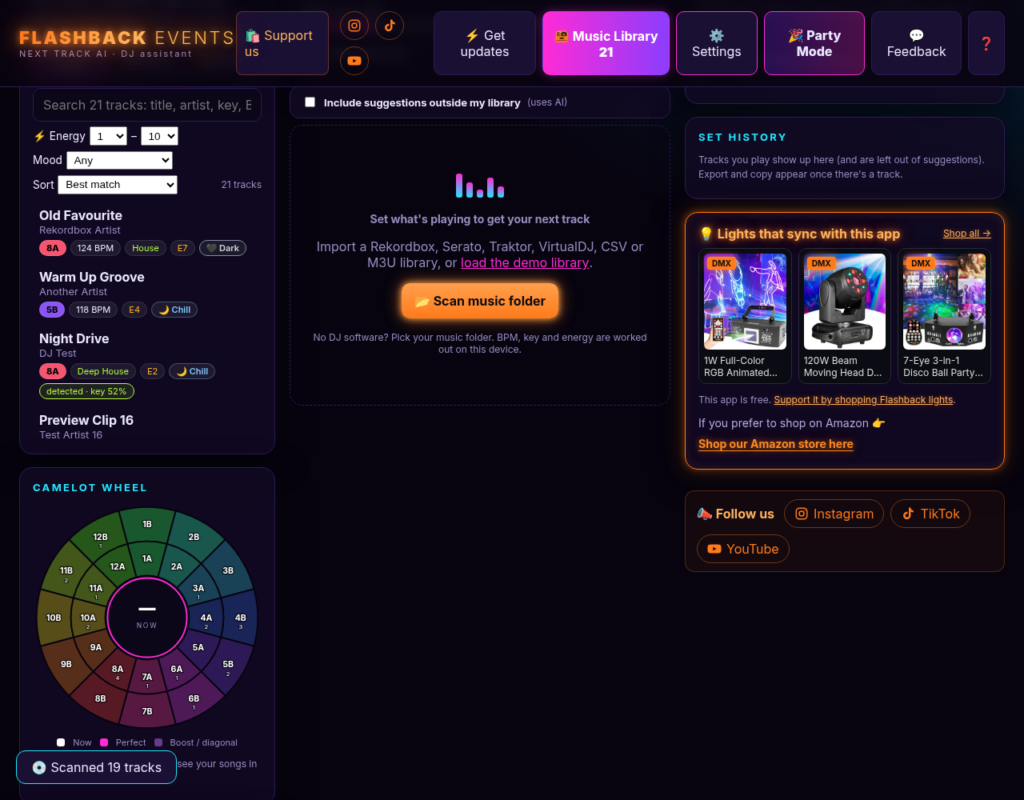
When the app analyzes a track, it now gives it an energy score from 1 to 10 and a feel: Chill, Groove, Uplifting, Dark or Peak time. You can filter and sort your library by those values, so it is easier to find a warm-up, a groove track or something for the peak of the night.
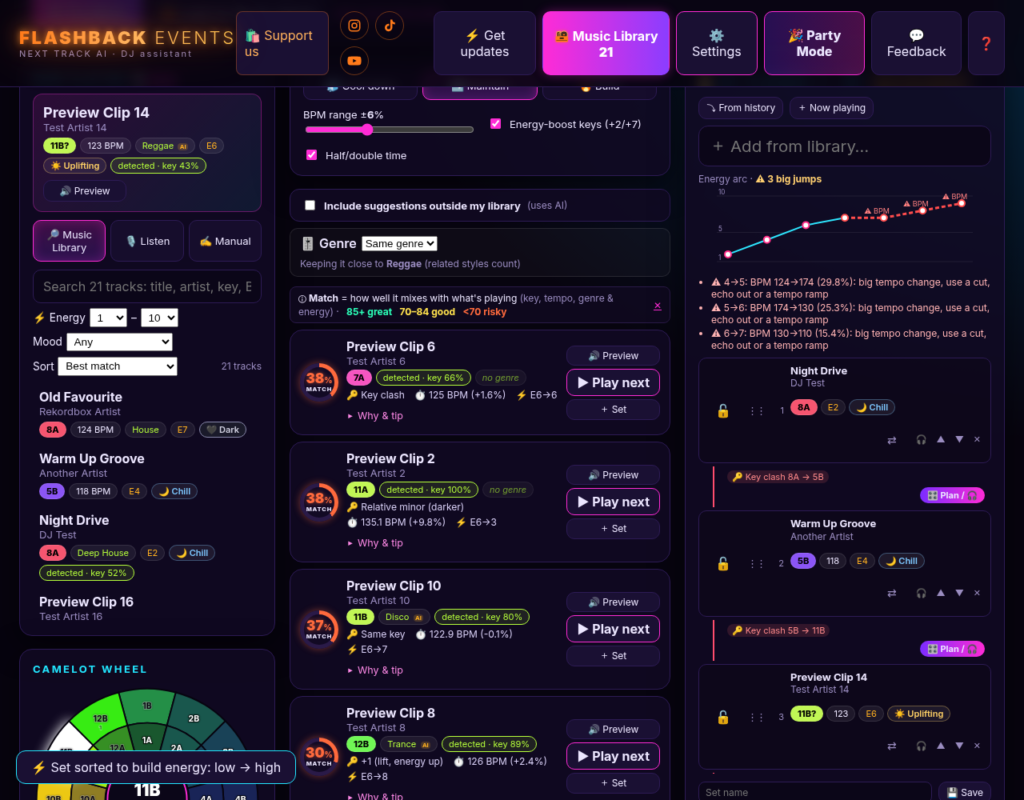
In the Set Planner, a Build energy button lines unlocked tracks up from low to high, so a set can climb instead of jumping around. Party Mode can also build energy through the night toward a peak you pick. Your Rekordbox tags and the values already in the file still win when they are present; the app fills in what is missing.
Watch & Learn and Party Mode Are Live
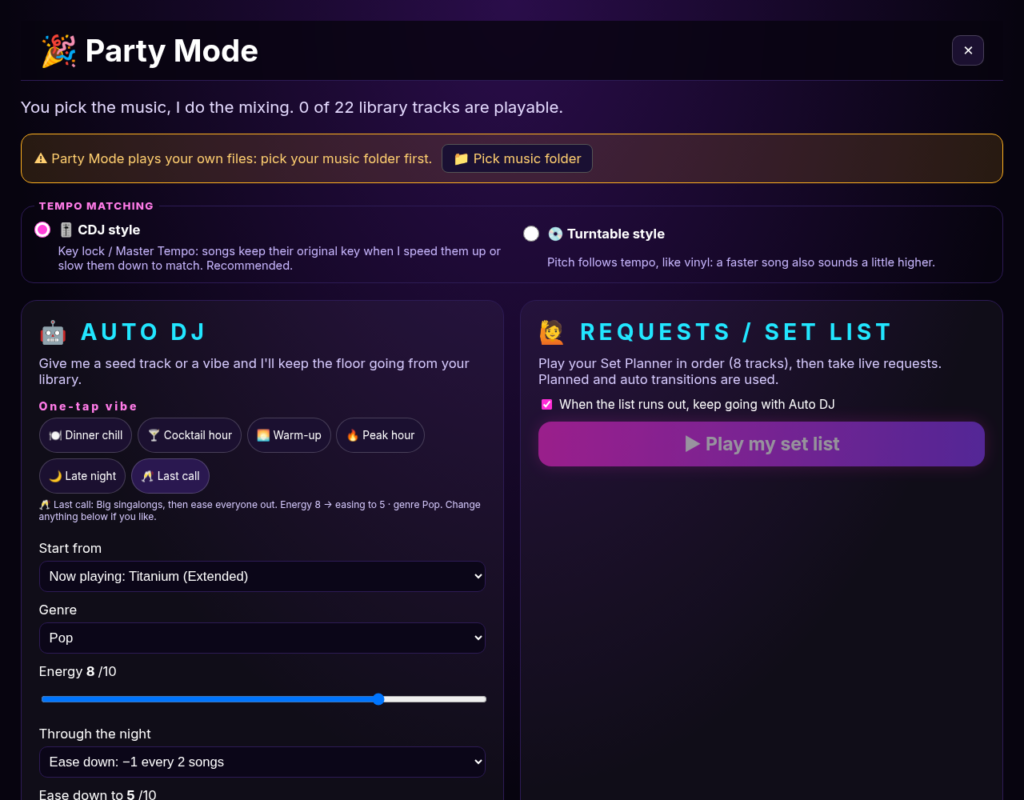
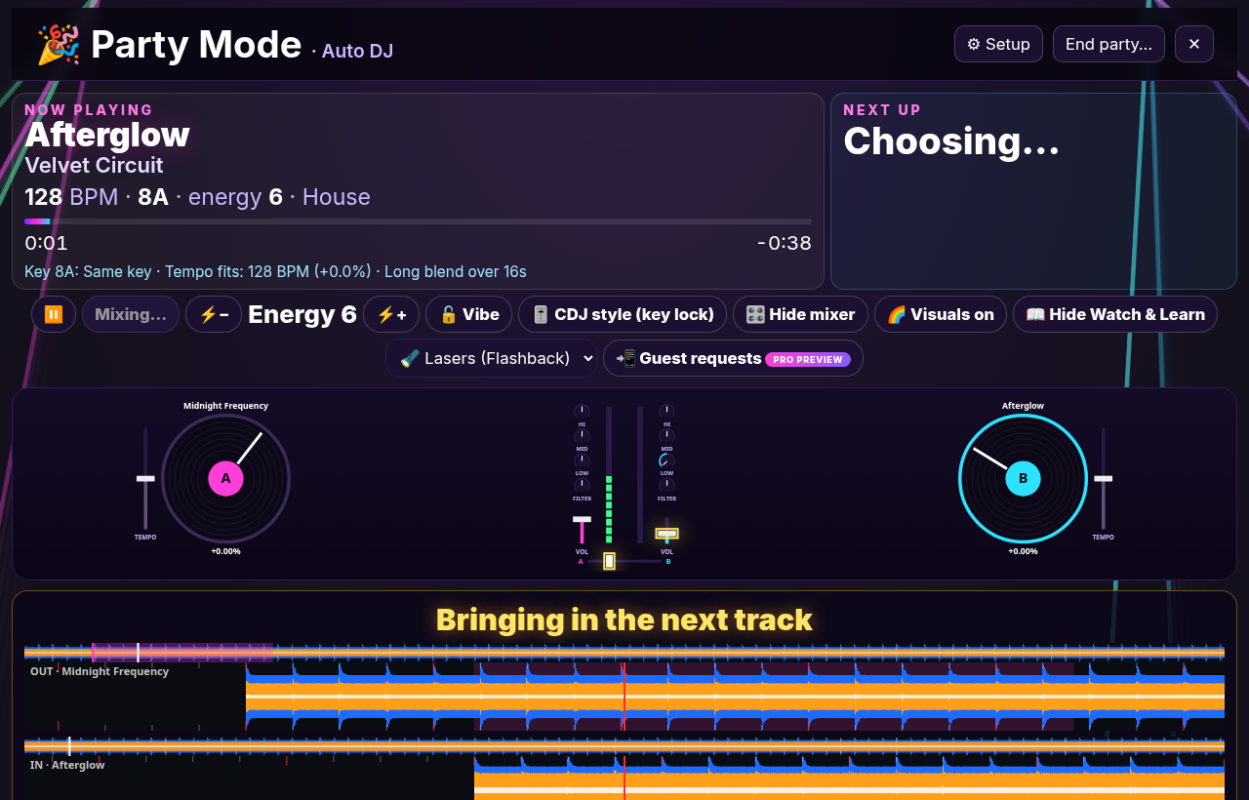
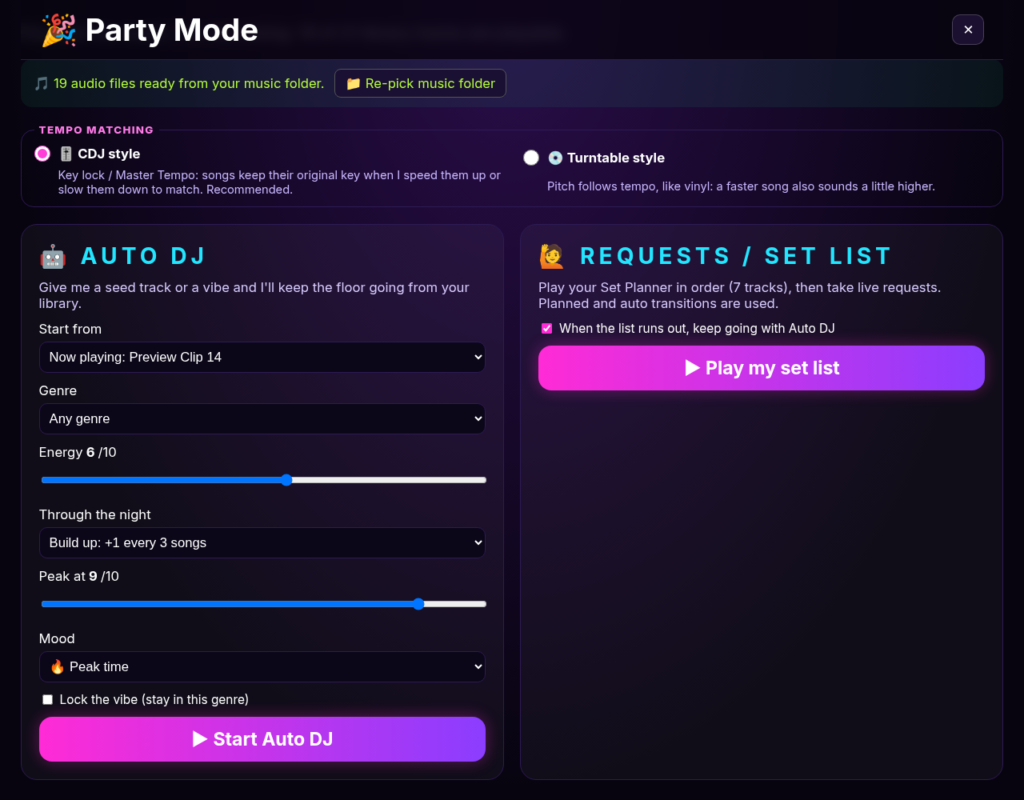
Party Mode is the full-screen view for a house party, wedding or any night when you want the app to mix for you. It already had Auto DJ, a request set list, QR guest requests, guest voting, music-reactive visualizers, and CDJ-style or turntable-style key lock. Those are all live.
Watch & Learn is live too. Turn it on and the app shows two stacked decks with colored waveforms, step captions during a transition, highlights on the fader and EQ, and glowing beat lines when the beats line up. Guests can actually see how a mix comes together, and you can switch it off whenever you want. It has its own toggle and is built to fit on one screen.
You still pick the music folder, pick a starting song or a vibe, and press play. The app handles the tempo match and the crossfade. On Safari, everything in Party Mode works in the browser; a few export extras, like copying a set straight to a USB stick, are available in Chrome or Edge.
A Shared Song Database You Control
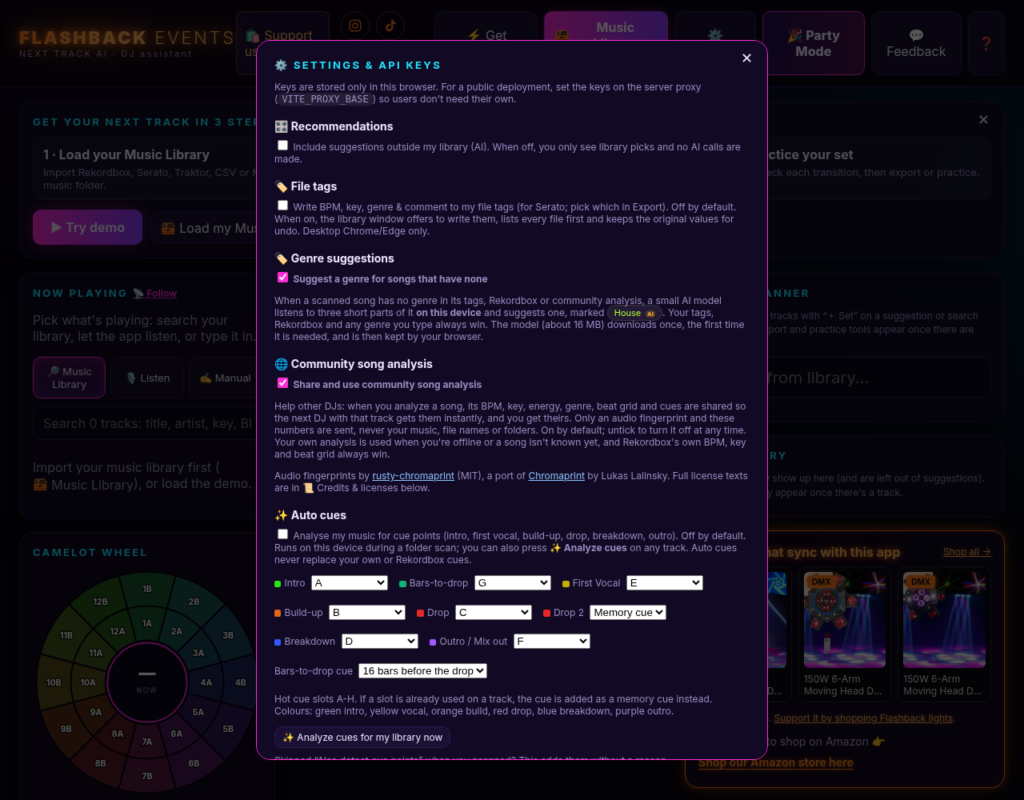
With Share and use community song analysis on, the app can look up a song other DJs have already analyzed and apply a trusted BPM, key, energy, genre, beat grid and cues. It can also share the app’s own analysis of a track you scan, so the next DJ with that song gets a head start.
As of the latest update, sharing is on by default, and it is easy to switch off. The first time you scan, a short notice explains what is shared and has a Turn off button, and you can untick it in Settings at any time. If you had already turned it off, it stays off. When it is on, the app sends an audio fingerprint and the app’s own analysis numbers, never your music files, file names, folders or your own hot cues. Your Rekordbox values and file tags always win over a community result.
A Cleaner Library, With You Still in Charge
A few quieter updates make a big library easier to live with, including collections stored on a portable hard drive.
- Better tag reading. The app now picks up missing title, artist, BPM and key from more file types, including M4A, so there is less to analyze by ear.
- AI genre suggestions. If a song has no genre, the app can suggest one on your computer. The first time this runs it downloads a small model (about 18 MB). Each guess gets an AI badge. Your own tags and Rekordbox always win, and there is an off switch in Settings. It is a helpful starting point, not a perfect labeler.
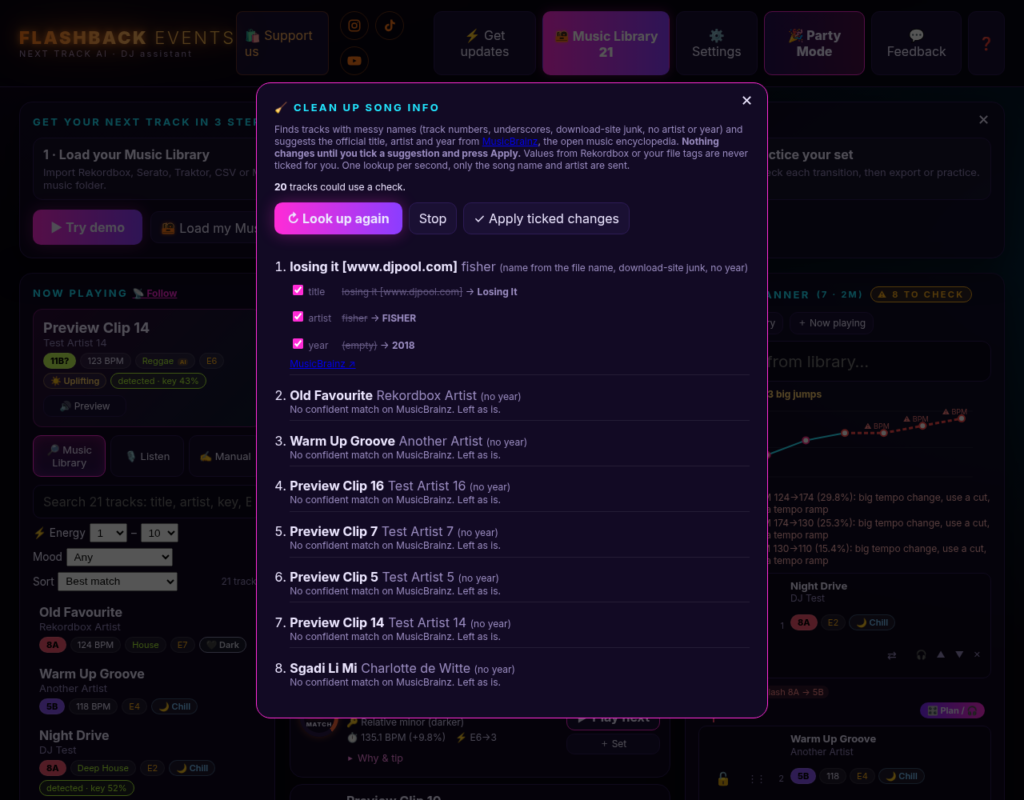
- Clean up song info. Messy names like a title with a download-site tag can get a suggested official title, artist and year from MusicBrainz. Nothing changes until you tick a suggestion and press Apply. Only the song name and artist are sent for that lookup, and only when you ask.
- Sturdier library storage. The first time you open the updated app, your existing songs, sets and cues move over automatically. The old copy is kept as a backup.
Settings also has a Credits & licenses section that lists every tool the app uses.
Auto Cues, and Getting Them Onto a CDJ
The app can still analyze a track and place hot cues in familiar spots: A Intro, B Build-up, C Drop, D Breakdown, E First Vocal, F Outro / Mix out, and G Pre-drop (by default, 16 bars before the drop). After that, you can edit those cues in the app, in Rekordbox, or on the player.
Export still covers Rekordbox XML, M3U, a USB folder or a ZIP. One important detail if you play on a CDJ-3000X: that player reads cues from a OneLibrary stick exported by Rekordbox (version 7.2.11 or later), not from a plain folder of files. The app can write the XML and copy the songs; you then import that XML into Rekordbox and let Rekordbox export the stick. A folder of songs will play, but the cues will not show until they come from that Rekordbox export. In Rekordbox, set the export location to your stick (on a Mac, the path looks like /Volumes/DriveName) and export from there.
New This Week: Smarter Picks, Vibe Presets and a Library Check-up
The latest update builds on the energy and mood scores, and it is live now. Here is what changed.
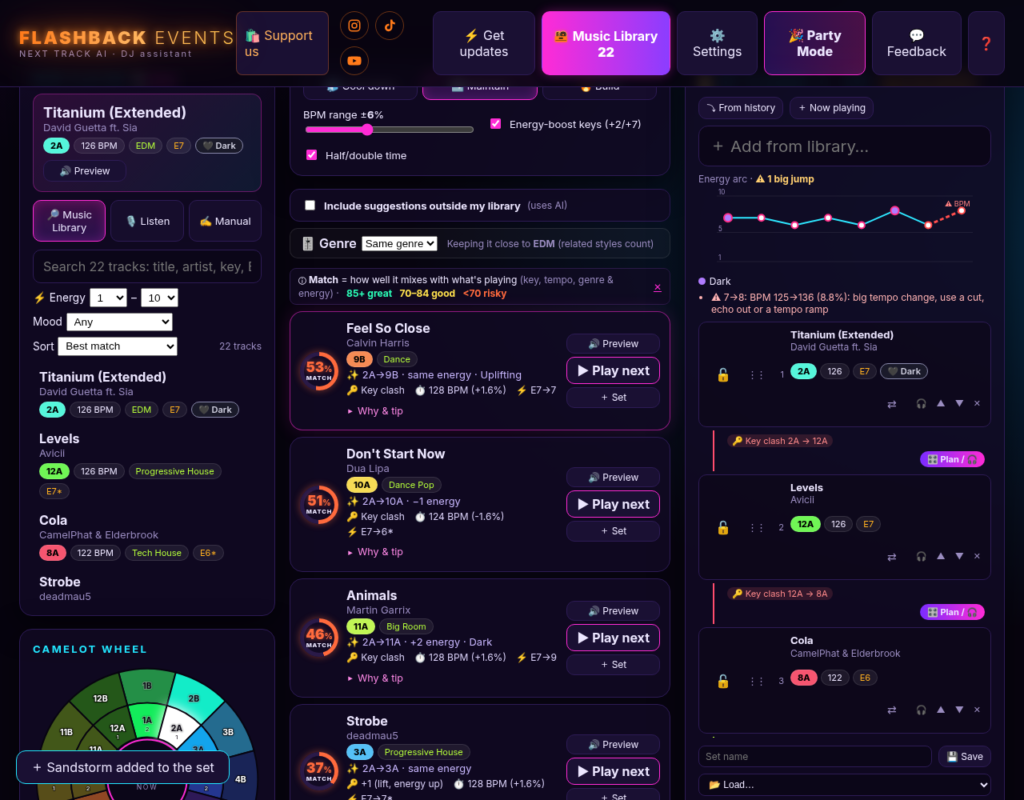
- Smarter next-track suggestions, with a reason. Picks are ranked by key, BPM, energy and mood together, and the same artist twice in a row gets marked down. Each suggestion now shows a one-line reason, like 2A→9B · same energy · Uplifting, so you can see why it fits at a glance.
- Vibe presets in Party Mode. One tap sets the night up: Dinner chill, Cocktail hour, Warm-up, Peak hour, Late night or Last call. Each preset sets the starting energy, the energy curve and the mood the app leans toward. You can still change any of it.
- A set energy graph that flags big jumps. The Set Planner’s energy graph shows a mood dot for every track and marks big jumps in red, such as an energy change of more than 2 or a big tempo change, so you can fix them before the floor feels it.
- Guest voting tied to the vibe. The songs guests vote on are picked to stay close to the energy the night is aiming for, so a vote is less likely to stall the floor. Guest requests still go first.
- Genre-aware transitions. Party Mode picks a mix style that suits the genres: a long blend with a bass swap between house or techno tracks, and a shorter blend, a cut on the phrase or an echo out for hip-hop, Latin or a big tempo change. A transition you edited or saved yourself always wins.
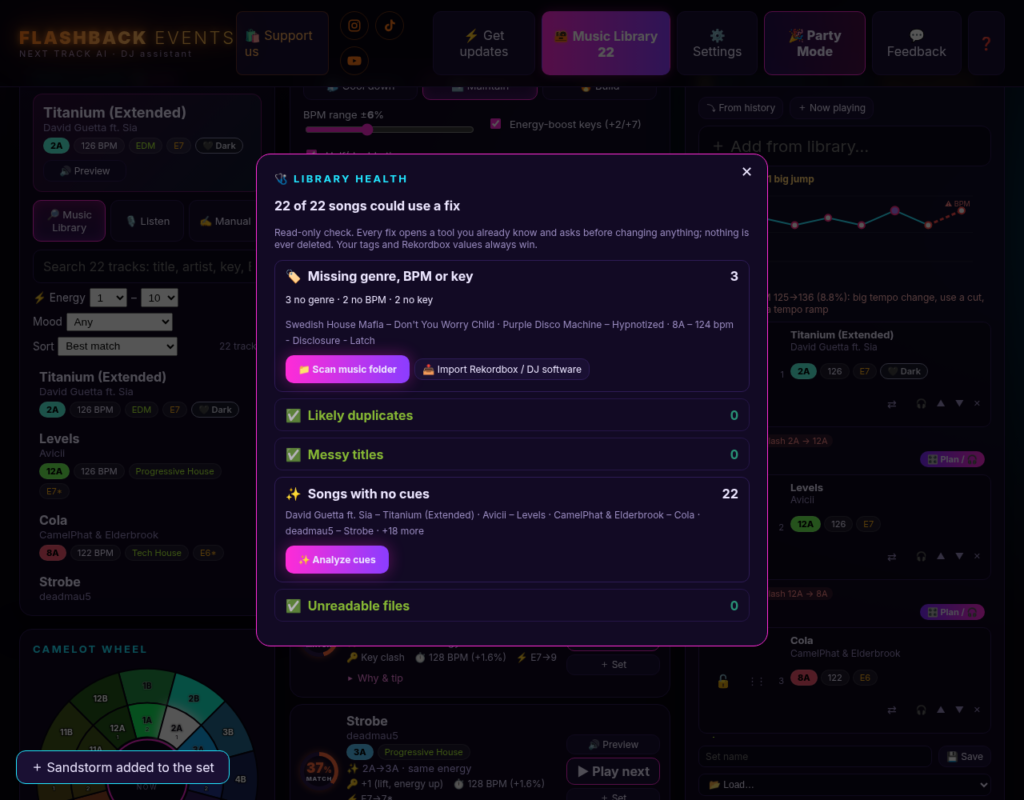
- Library health report. One read-only screen counts songs missing a genre, BPM or key, likely duplicates, messy titles, songs with no cues and files that could not be read. Each item opens the tool that fixes it, and nothing changes until you say so. Nothing is ever deleted.
- Better use of the shared song database. When enough DJs agree on a song’s BPM, key and energy, the app uses that result and skips its own analysis of that song, so scans of well-known tracks can finish faster. Otherwise it analyzes the song on your computer as before.
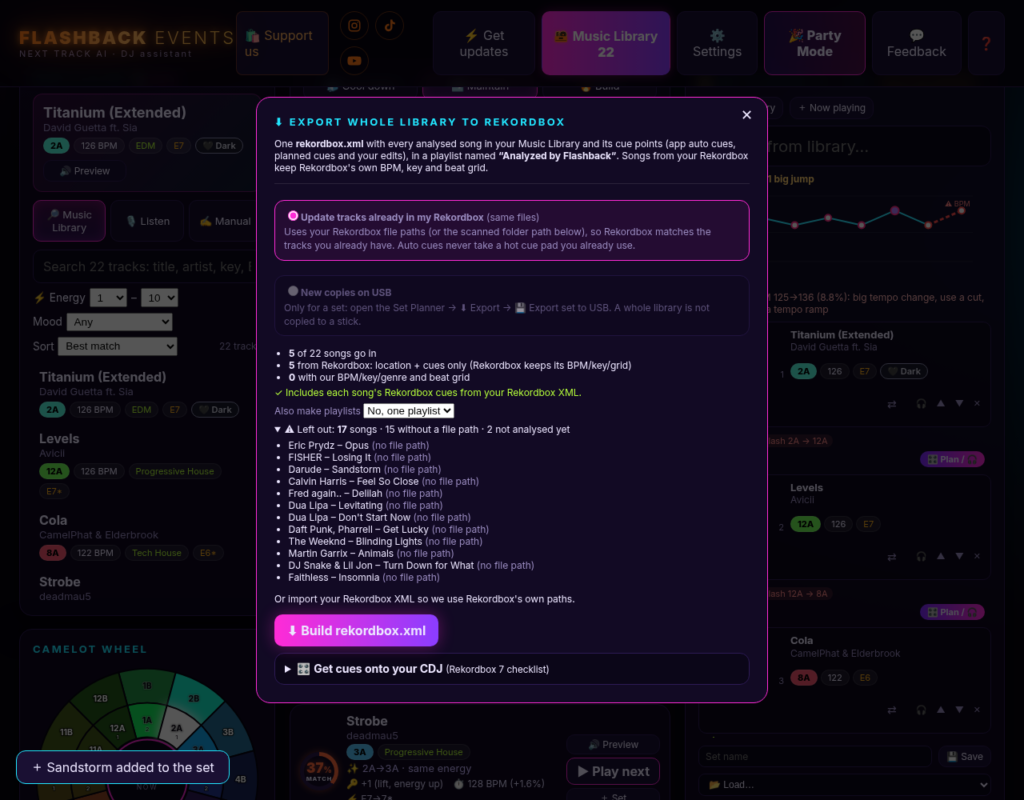
- Export your whole library to Rekordbox. Music Library now has an Export whole library to Rekordbox option. It writes one
rekordbox.xmlwith every analyzed song that has a file location, plus its cue points, in a playlist named Analyzed by Flashback. Songs that came from your Rekordbox keep Rekordbox’s own BPM, key and beat grid, and auto cues never take a hot cue pad you already use. For a CDJ-3000X, import that XML into Rekordbox and export a OneLibrary stick from there. - Community sharing is now on by default, with an off switch. The first time you scan, a short notice explains what is shared and has a Turn off button. You can also untick it in Settings at any time. If you had already turned sharing off, it stays off.
What is shared when it is on: an audio fingerprint plus the app’s own analysis numbers (BPM, key, energy, genre, beat grid and the app’s cues). Your music files, file names, folders and your own hot cues are never sent.
More Accurate BPM and Key Detection
The newest update is all about getting the numbers right, so your suggestions, grids and exports start from better information.
- More accurate BPM. Tempo detection is improved across the board, including songs with triplet feels and songs that tend to read at half or double speed, such as reggaeton and hip-hop.
- ½ and ×2 BPM buttons, plus a BPM range setting. If a song still reads at half or double speed, one tap fixes it. You can also set the BPM range you play in, so the app picks the right reading for your music.
- A tighter beat grid, with bar 1 in the right place. Grids line up more closely with the beat, and the app marks where bar 1 starts, which helps auto cues and phrase-based mixing.
- Variable-tempo grids in the Rekordbox export. Songs whose tempo drifts, like live drummers or older recordings, can now carry a grid that follows the tempo when you export to Rekordbox.
- M4A grid fix. Beat grids for M4A/AAC files now line up correctly.
- Much better key detection. Key detection has been reworked and is much more accurate.
- A Check filter in your library. It lists songs where your tags and the app’s analysis disagree, so you can decide which one is right. Nothing changes unless you choose to change it.
Analysis still runs on your computer, and your own tags and Rekordbox values still win unless you change them.
Make the Lights Match the Music
Great mixing deserves a great light show. Our DMX moving head and laser lights are built for mobile DJs, weddings and house parties, and they react to the music with sound-active and DMX modes. A few places to start:
- 150W 6-Arm Moving Head DJ Light (DMX)
- 120W 4-Arm Moving Head DJ Light (DMX)
- 2W RGB Animation Laser (DMX, Sound Active)
Browse the full lineup in our shop.
It Only Takes a Few Steps
You do not need to install anything or create an account. Open dj.dancepartylights.com in Chrome, Edge or Safari, pick your music folder, and let the app scan. When you want the app to DJ, open Party Mode, tap a vibe preset or pick a starting song, and press play. The app matches the tempo and mixes for you. Guests can scan a QR code to request or vote on songs you already have. If you play out on CDJs, export the set and finish the stick in Rekordbox so cues show on the player.
Your music files stay on your computer the whole time. Community sharing sends only a fingerprint and analysis numbers, and you can turn it off. Clean up song info sends a song name and artist only when you ask it to.
Try the Updates Tonight
Open the app, point it at your music folder, and run a scan. You should see energy and mood on the tracks, genre suggestions on songs that had none, and a reason under each next-track pick. Open Library health to see what needs a fix. In Party Mode, tap a vibe preset, turn on Watch & Learn and let it mix a few songs. When you are done, export the whole library to Rekordbox in one file. If a song’s BPM or key looks off, open the Check filter or tap ½ or ×2. Then tell us how it feels from inside the app.
Follow along for mixes, light shows and app updates: Instagram @dancepartylights, TikTok @yourpartylighting, and YouTube Flashback Events.
