Blog
How to Prep Your DJ Library Faster: Auto Hot Cues, Clean Tags and Rekordbox Export
Nov
If you want to prep your DJ library faster without giving up Rekordbox or your CDJs, the free Flashback Events DJ app is built for that job. It is not a Rekordbox replacement, and it is not a DJ app for live performance. For live gigs, you keep using Rekordbox and your CDJs, or the performance software you already play on. This app is the prep and library-organizing step before that: it helps you clean tags, check what is missing, auto-set hot cues, and export a Rekordbox XML you can import before you build the USB stick you actually play from.
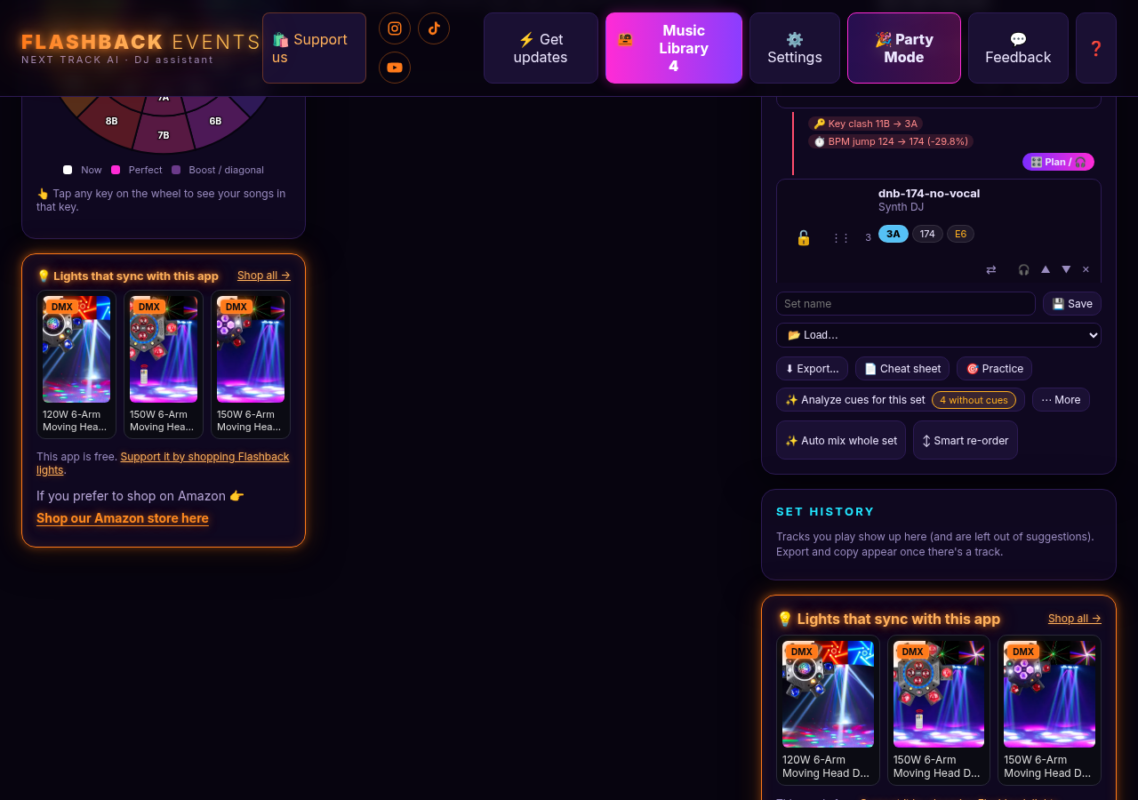
The app runs in your browser at dj.dancepartylights.com. There is nothing to install, it costs nothing, and your music files stay on your computer. It also has Party Mode for a casual hangout or house party: it can auto-mix, take guest votes, use vibe presets, and show Watch & Learn. Party Mode is for hanging out, not for live performance. This post is about the prep workflow that gets a library ready for Rekordbox and the CDJs. For more on Party Mode as a hangout feature, see What’s New in the Free DJ App and Meet the Free DJ App That Picks Your Next Track (and Now Mixes Your Party).
Not a Rekordbox Replacement — a Prep Companion
Rekordbox is still the place you finish a collection for Pioneer hardware, and the place you perform from on a live gig. If you play on a CDJ-3000X, that player reads a OneLibrary USB exported by Rekordbox, not a plain folder of files. For live gigs, you keep using Rekordbox and your CDJs, or your usual performance software. This app is the prep and library-organizing step before that. It does the earlier, time-consuming part of the work:
- It can auto-set hot cues on one track, a planned set, or your whole library.
- It reads tags, suggests cleaner titles and artists, and can fill in a missing genre.
- It reports library health and can fix Rekordbox XML paths when files are not where the XML says they are.
- It exports a
rekordbox.xmlwith your songs, playlists and planned cues. Songs that already came from Rekordbox keep Rekordbox’s own BPM, key and beat grid. Auto cues never take a hot cue pad you already use.
You then import that XML into Rekordbox and, for a CDJ-3000X, export a OneLibrary stick from there.
Auto Hot Cues for a Track, a Set, or Your Whole Library
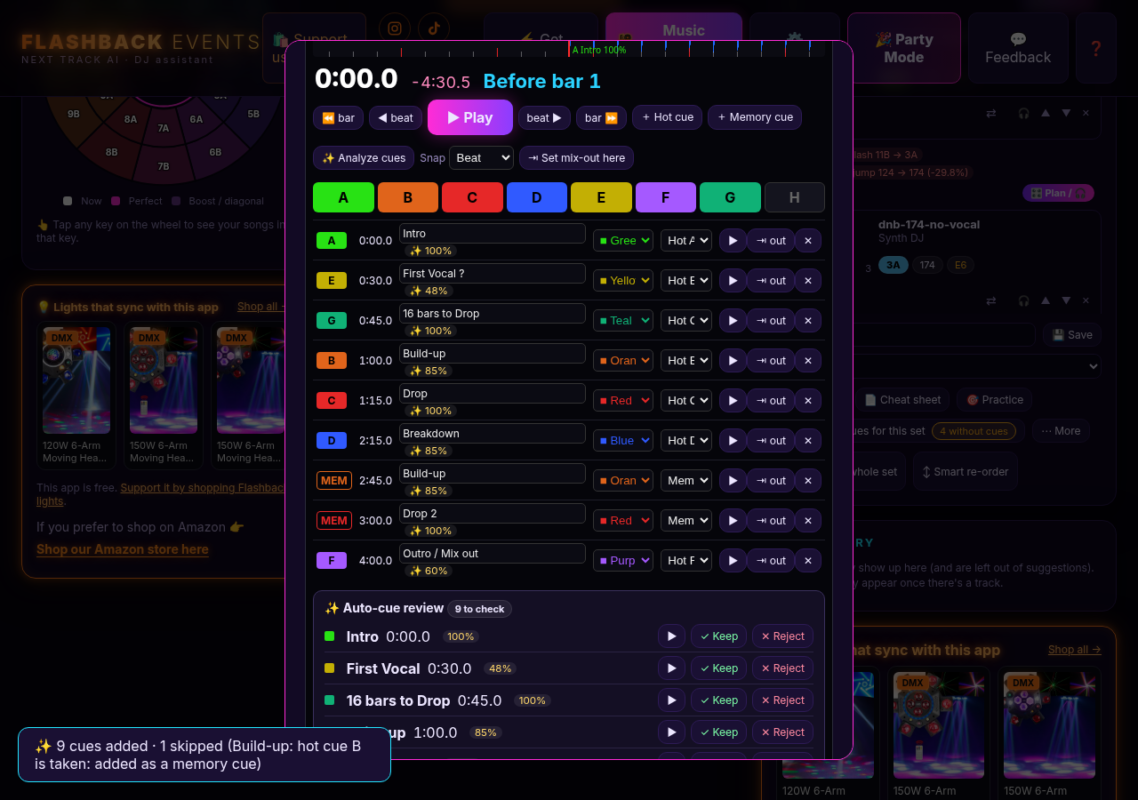
The app can analyze a song and place hot cues at familiar phrase points:
- A Intro
- B Build-up
- C Drop
- D Breakdown
- E First Vocal
- F Outro / Mix out
- G Pre-drop (by default, 16 bars before the drop)
You can run that on a single track, on every song in a planned set, or across the library. After analysis, you can listen and keep or reject each cue. If a hot cue pad is already in use, the app leaves that pad alone and can add the new mark as a memory cue instead. Your own cues and Rekordbox cues are not overwritten.
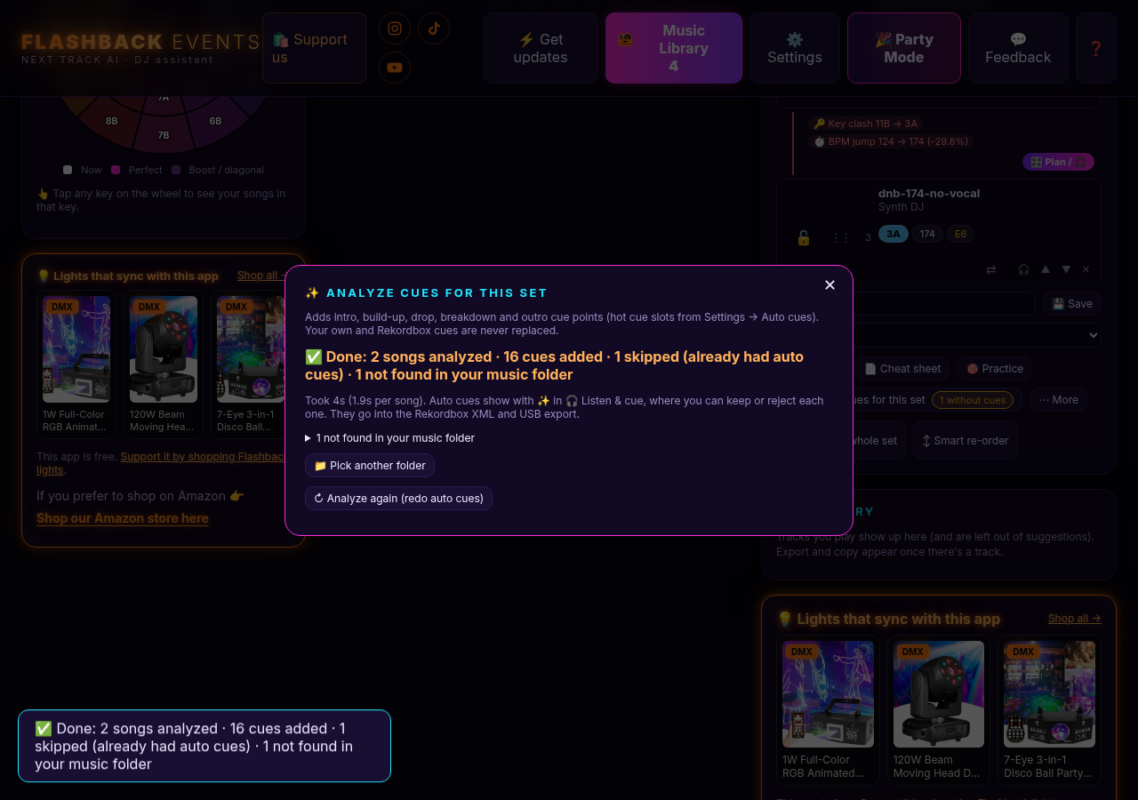
Auto cues are a starting point. Listen to them, move them if a phrase sits better somewhere else, and finish any last edits in Rekordbox or on the player if you want to.
Clean Tags, Fix Paths and a Library Health Check
A cue export is only useful if Rekordbox can find the file and you can find the song. The app includes a few library tools for that.
- Better tag reading. It picks up missing title, artist, BPM and key from more file types, including M4A.
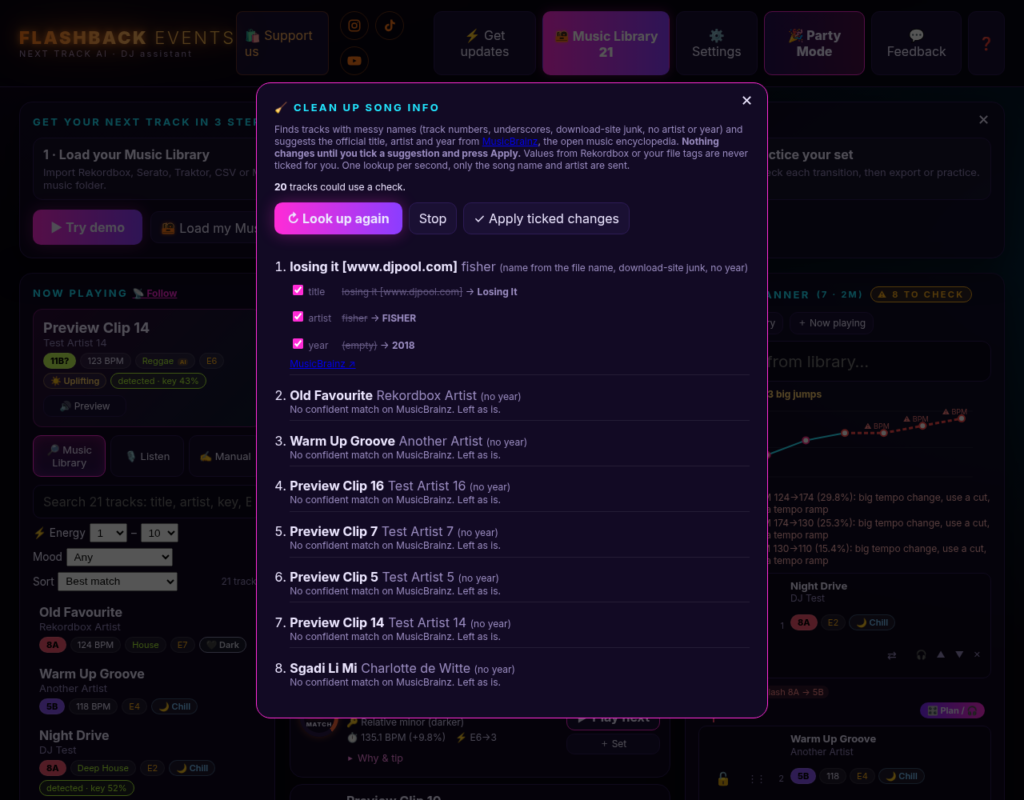
- Clean up song info. Messy names, such as a title with a download-site tag, can get a suggested official title, artist and year from MusicBrainz. Nothing changes until you tick a suggestion and press Apply. Only the song name and artist are sent for that lookup, and only when you ask.
- AI genre suggestions. If a song has no genre, the app can suggest one on your computer. Each guess gets an AI badge. Your own tags and Rekordbox always win, and there is an off switch in Settings.
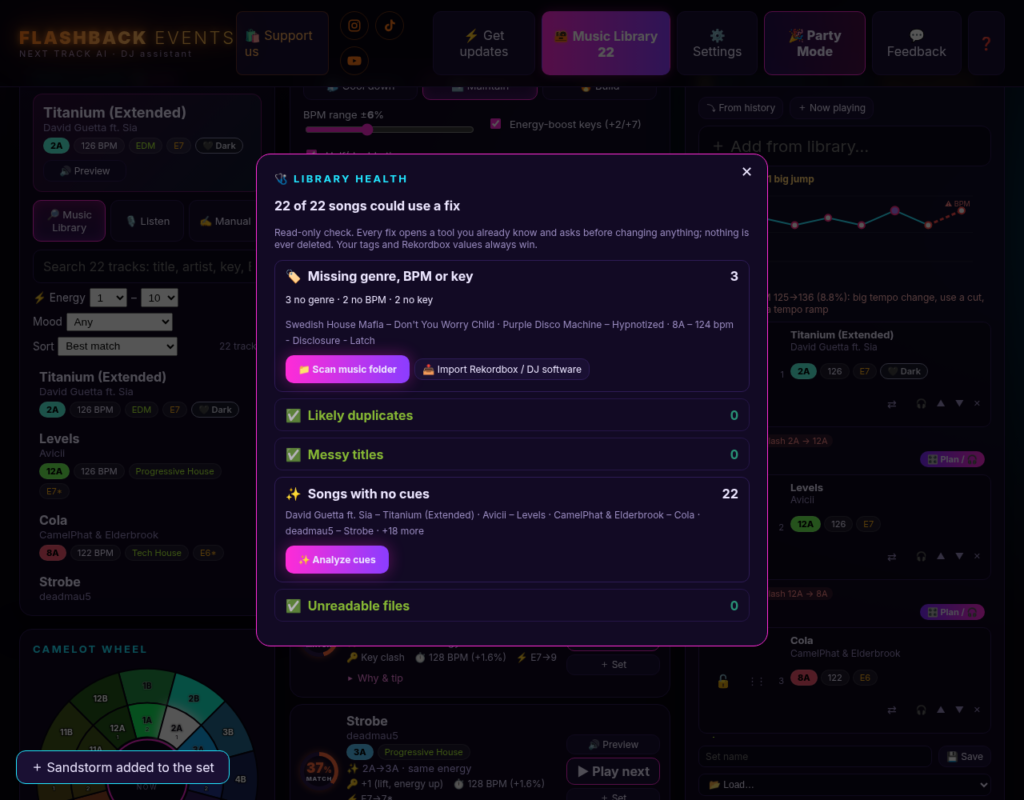
- Library health report. One read-only screen counts songs missing a genre, BPM or key, likely duplicates, messy titles, songs with no cues, and files that could not be read. Each item opens the tool that fixes it. Nothing is changed until you say so, and nothing is ever deleted.
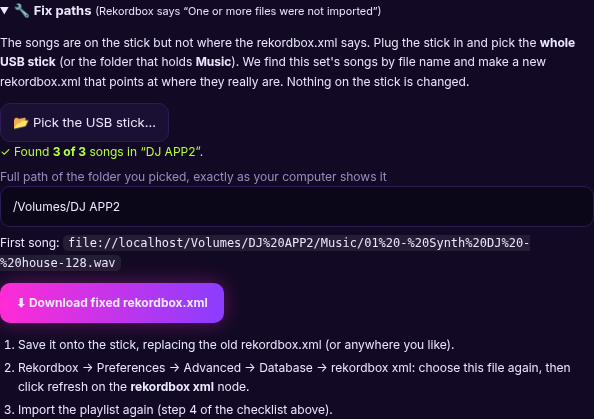
- Fix paths. If Rekordbox says one or more files were not imported, the songs may be on the stick (or in a folder) but not at the path written in the XML. Fix paths lets you pick the USB stick or the folder that actually holds the music. The app matches songs by file name and writes a new
rekordbox.xmlthat points to where they really are. Nothing on the stick is changed.
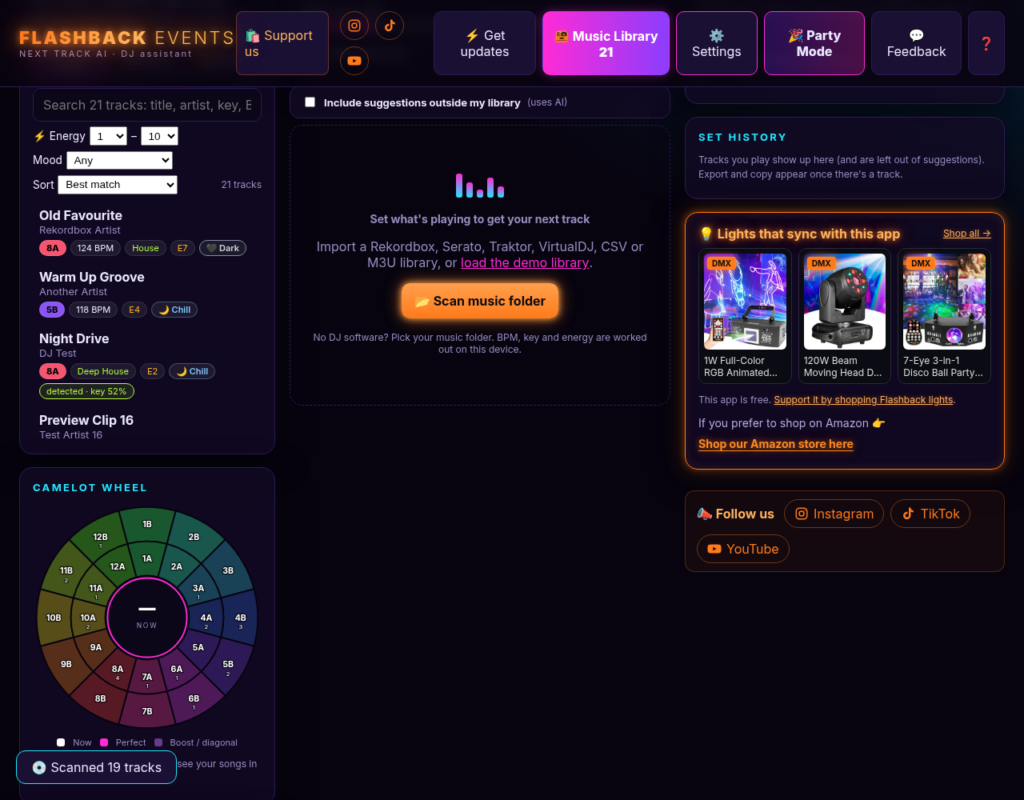
The app also gives each analyzed song an energy score from 1 to 10 and a feel: Chill, Groove, Uplifting, Dark or Peak time. That is useful when you are building a set, and those values travel with the library tools above.
BPM, Key and Beat Grids, Ready for Export
When the app analyzes a track, it also detects BPM, key, a beat grid and where bar 1 starts. That helps auto cues land on phrases, and it gives Rekordbox a grid to work from when a song does not already have one.
If a song came from your Rekordbox collection, the export keeps Rekordbox’s own BPM, key and beat grid. Your tags and Rekordbox values still win unless you choose to change them. The app can also flag songs where tags and analysis disagree, so you can decide which reading to keep. This post does not compare those readings with other analysis apps.
Export to Rekordbox, Then to Your CDJs
Music Library has an Export whole library to Rekordbox option. It writes one rekordbox.xml with every analyzed song that has a file location, plus cue points (app auto cues, planned cues and your edits), in a playlist named Analyzed by Flashback. You can also export a planned set or selected playlists the same way.
To bring that file into Rekordbox:
- In Rekordbox, open Preferences, go to the View category, Layout tab, and turn on rekordbox xml in the Media Browser if it is not already visible.
- In Preferences, go to the Advanced category, Database tab, and set Imported Library under rekordbox xml to the file the app exported.
- In the Media Browser, open rekordbox xml, then All Tracks, and drag the songs into your Collection. To bring in a playlist, open Playlists under rekordbox xml and drag that playlist into Rekordbox’s Playlists.
Those steps follow the Rekordbox 7 instruction manual.
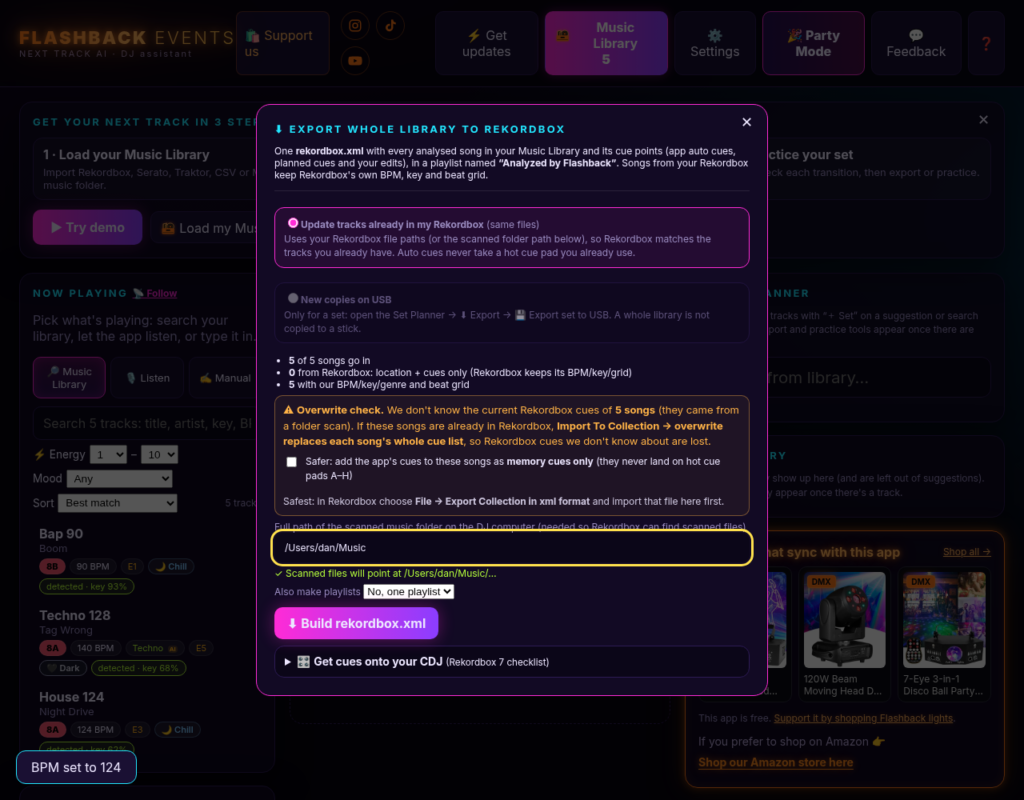
Getting cues onto a CDJ-3000X. That player browses a USB stick only when OneLibrary has been exported to it by Rekordbox. A folder of songs will play, but the cues will not show until they come from that Rekordbox export. Import the XML as above, then export the stick from Rekordbox. Official Pioneer DJ / AlphaTheta guidance is to use the latest Rekordbox 7 (they recommend version 7.2.11 or later) so the stick includes OneLibrary. In Rekordbox, set the export location to your stick (on a Mac, the path looks like /Volumes/DriveName) and export from there.
How These Prep Workflows Compare
There is more than one way to prep a library. The useful question is not “which app replaces Rekordbox?” It is “which prep steps do you want help with, and where do you finish the collection?” The notes below are limited to what each product’s official site or manual describes. This is not a ranking, and it does not compare analysis accuracy.
Manual prep in Rekordbox alone
Rekordbox can analyze tracks as you add them to your Collection, including BPM and grid, key, phrase and vocal analysis. You then set hot cues and memory cues yourself, track by track, and export a USB when you are ready. This gives you full control. On a large library, placing every cue by hand is also the slowest path.
Rekordbox’s own auto features
Rekordbox can do more of that work for you. Auto Analysis can start when a file is added to the Collection. In CUE settings, Rekordbox can automatically set a cue at the first beat (1.1 Bars) when you import or re-analyze a track. Intelligent Cue Creation can automatically set Hot Cues or Memory Cues during analysis, using phrase analysis plus general and personal cue-setting trends. Rekordbox’s official documentation notes that this function may depend on your subscription plan. When Rekordbox is online, Cloud Analysis can retrieve analysis information to shorten analysis time. These tools stay inside Rekordbox, which is the most direct path if you already prep and perform there.
Mixed In Key
Mixed In Key is a desktop library-preparation app for Mac and Windows. Officially, it analyzes key, BPM and energy, and can start you with up to eight automatic cue points per track. You review and adjust those cues, write key and BPM tags, and follow Mixed In Key’s integration guides to use the results in Rekordbox and other DJ software. Mixed In Key’s own documentation says it prepares your library and is not a replacement for Rekordbox, Serato or Traktor.
Serato DJ Pro prep
Serato DJ Pro can analyze files for waveform overviews, BPM, key and beatgrids. Analyze on Import can do that automatically when new files are added, and you can also analyze the whole library, a crate or a selection. Official Serato documentation describes setting cue points (up to eight) in the software or on hardware; those cues are saved with the file. Serato is a full DJ performance application. This comparison is only about that prep step, not about playing a gig in Serato.
VirtualDJ prep
VirtualDJ can batch-analyze specific files, a folder or an entire library for BPM, key and length. When a file is first analyzed, VirtualDJ automatically creates First Beat anchors and Automix in and out points, and it can automatically create Remix Points at structural changes such as the beginning or end of a break. VirtualDJ’s official POI Editor manual states that it does not automatically create Hot Cues; those need to be created by the DJ. Like Serato, VirtualDJ is a full DJ application; the notes here cover preparation only.
The Flashback Events free DJ app
The free browser app is a companion in front of Rekordbox. It auto-sets named hot cues for a track, a set or the library, helps you clean tags and paths, scores energy and mood, and exports a Rekordbox XML. Rekordbox analysis is kept when it is already present, and you still finish a CDJ-3000X stick in Rekordbox as a OneLibrary export. For live gigs, you still play in Rekordbox and on CDJs, or in your usual performance software. Party Mode is a casual hangout and house-party feature, not a live-performance mode. This app does not replace Rekordbox, Serato, VirtualDJ or Mixed In Key.
| Prep workflow | What official docs say it prepares | Auto cues / markers | How it meets Rekordbox and CDJs |
|---|---|---|---|
| Manual prep in Rekordbox | BPM/grid, key, phrase and vocal analysis, then cues you set yourself | You place hot cues and memory cues by hand | This is Rekordbox, so USB export (including OneLibrary) is built in |
| Rekordbox auto features | The same analysis, plus optional automatic cues | A cue at 1.1 Bars; Intelligent Cue Creation can set Hot Cues or Memory Cues (may depend on your plan) | Stays in Rekordbox; export the USB from there |
| Mixed In Key | Key, BPM, energy, tags and playlists | Up to eight automatic cue points to review, then export via its integration guides | Officially a prep tool; follow its Rekordbox integration guide, then finish in Rekordbox |
| Serato DJ Pro prep | Waveforms, BPM, key and beatgrids, including on import | Official docs describe cue points you set in the software or on hardware (up to eight), saved with the file | A separate DJ application; this is not a Rekordbox USB workflow |
| VirtualDJ prep | BPM, key and length, in a batch if you want | Automatic First Beat, Automix and Remix Points; Hot Cues are user-created, per the official manual | A separate DJ application; this is not a Rekordbox USB workflow |
| Flashback Events free DJ app | BPM, key, beat grid, bar 1, energy, mood, tags, library health and path fixes, in the browser | Named auto hot cues for a track, a set or the library; you review them; existing Rekordbox pads are left alone | Export rekordbox.xml, import it in Rekordbox, then export a OneLibrary USB for a CDJ-3000X |
Prep a Gig in Minutes
Here is a typical prep pass in the free app before you finish the stick in Rekordbox. How long it takes depends on how many songs you scan and how much you choose to review.
- Open dj.dancepartylights.com in Chrome, Edge or Safari and pick your music folder. Let the app scan. Your files stay on your computer.
- Open the library health report. Scan for missing genre, BPM or key, messy titles, duplicates, songs with no cues, and files that could not be read.
- Use Clean up song info on messy titles, and accept only the MusicBrainz suggestions you agree with. Add genre tags where you want them.
- Build or load the set you plan to play, then choose Analyze cues for this set (or analyze one track, or the whole library). Review the auto cues and keep or reject each one.
- Export a
rekordbox.xmlfor the set or the whole library. If a song already has Rekordbox analysis, that analysis is kept. Auto cues will not take a hot cue pad you already use. - In Rekordbox, point Imported Library at that XML, turn on rekordbox xml in the Media Browser if needed, and drag the tracks or playlists into your Collection.
- If Rekordbox reports that files were not imported, use Fix paths in the app, download the corrected XML, and import again.
- Export a USB from Rekordbox. For a CDJ-3000X, export OneLibrary (with a current Rekordbox 7, officially recommended at version 7.2.11 or later). Spot-check a couple of tracks on the player so the cues show before you leave for the gig.
FAQ
Is this a Rekordbox alternative?
No. It is a library-organizing and cue-prep companion, not a Rekordbox replacement for live performances. For live gigs, you keep using Rekordbox and your CDJs, or your usual performance software. You still import the XML into Rekordbox, and you still use Rekordbox to export a USB for Pioneer CDJs.
Will it overwrite the cues I already set in Rekordbox?
The export is written so auto cues do not take a hot cue pad you already use. Songs that came from Rekordbox keep Rekordbox’s own BPM, key and beat grid. You can also add the app’s cues as memory cues only. Always check the export summary before you import, and keep a Rekordbox backup of your collection if you are updating tracks that are already in it.
How do the cues get onto a CDJ-3000X?
Import the XML into Rekordbox, then export a OneLibrary USB from Rekordbox. The CDJ-3000X does not read cues from a plain folder of files.
Can I analyze just one set instead of my whole library?
Yes. You can analyze a single track, all the songs in a planned set, or the whole library.
Do my music files leave my computer?
No. Analysis runs on your computer. If community song analysis is on, the app shares an audio fingerprint and the app’s own analysis numbers, never your music files, file names, folders or your own hot cues. You can turn that sharing off in Settings. Clean up song info sends a song name and artist only when you ask it to.
What if Rekordbox says some files were not imported?
Use Fix paths. Pick the USB stick or the folder that actually holds the music. The app writes a new XML that points at those files and leaves the music itself alone.
What is Party Mode for?
Party Mode is a casual hangout and house-party feature. It can auto-mix, take guest votes, use vibe presets, and show Watch & Learn. It is not for live performance, and it is not a replacement for Rekordbox or other DJ performance software.
Does this replace Mixed In Key, Serato or VirtualDJ?
No. Those are different tools, and the section above only describes the prep features their official docs list. This app is a free browser companion for organizing a library and auto-setting hot cues on the way into Rekordbox. It is not a live-performance replacement.
Make the Lights Match the Music
A prepped library deserves a light show that can keep up. Our DMX moving head and laser lights are built for mobile DJs, weddings and house parties, and they react to the music with sound-active and DMX modes. A few places to start:
- 150W 6-Arm Moving Head DJ Light (DMX)
- 120W 4-Arm Moving Head DJ Light (DMX)
- 2W RGB Animation Laser (DMX, Sound Active)
Browse the full lineup in our shop.
Try It Before Your Next Gig
Open the app, point it at your music folder, and run a scan. Check library health, auto-set cues on the set you plan to play, and export a Rekordbox XML. Import that file in Rekordbox, export a OneLibrary stick if you are playing a CDJ-3000X, and tell us how the workflow feels from inside the app. If you want a casual house-party mix at home, Party Mode is there for hanging out. It is not what you take on stage for a live gig.
Follow along for mixes, light shows and app updates: Instagram @dancepartylights, TikTok @yourpartylighting, and YouTube Flashback Events.
