Blog
Meet DMX Flashback Events: The DJ Light Show App That Follows Your Music
Nov
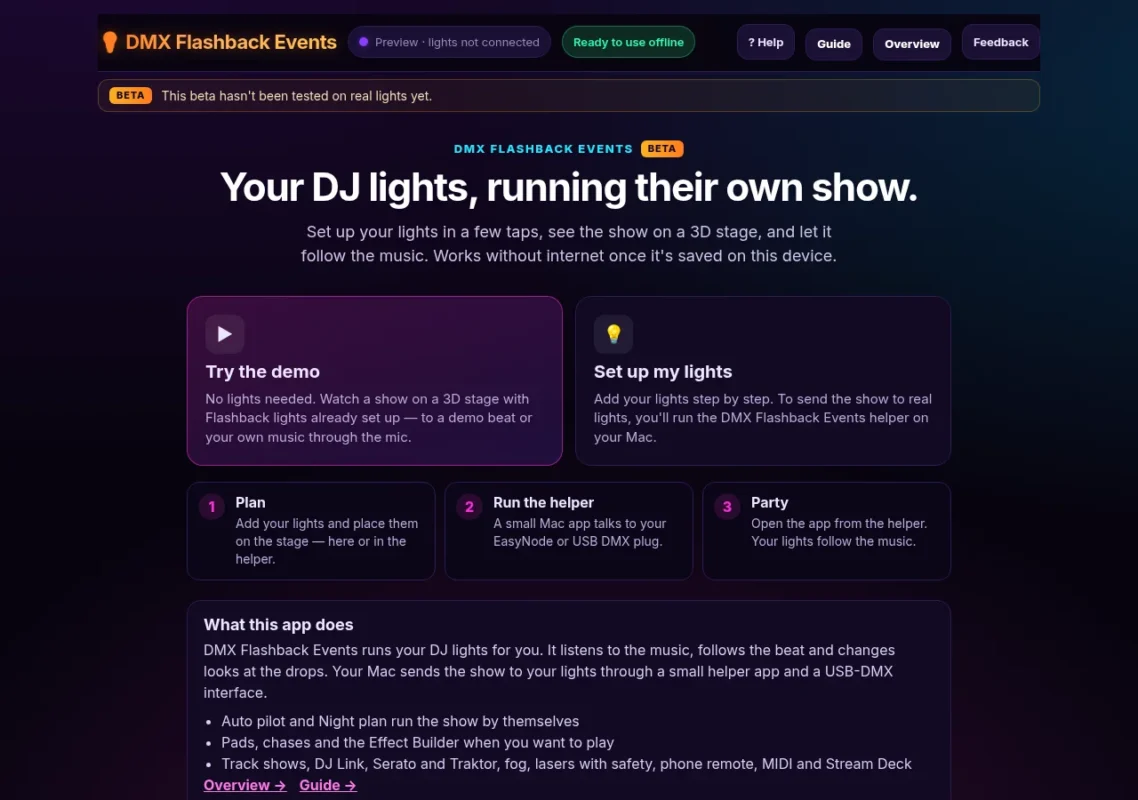
Your lights should feel like part of the mix, not something you babysit between tracks. That is why we built DMX Flashback Events, a light show app for mobile DJs and party hosts. It listens to your music and runs your DJ lights in time with it: looks that follow the beat, hits on the drops, and a show you can plan for every song.
Free during the beta: DMX Flashback Events, including the Mac helper, is free to use while the app is in beta.
You set up your lights once. Then the app runs them: on its own with Auto pilot, from pads when you want to play, or from a timeline you plan for each song. A small helper app on your Mac sends the show to your lights. For a one-page summary, see the DMX Flashback Events overview.
What You Need
- A Mac with macOS 11 or later, Apple silicon or Intel.
- The helper, a free download from inside the app. It is the part that talks to your lights.
- A DMX interface: a USB-DMX plug, or a Wi-Fi box like the Pknight EasyNode (Art-Net). You can use both at once.
- Lights: Flashback lights or other DMX lights.
Phone or iPad? You can watch the show and use the remote from them, with the Mac running the lights.
How It Works in 3 Steps
- Install the helper. Download it from the app, open it on your Mac and plug in your DMX interface.
- Add your lights. Pick your lights, set their DMX addresses, and place them on the 3D stage.
- Play your music. Turn on Auto show and the lights follow the beat. Use pads, Night plan or Track shows when you want more.
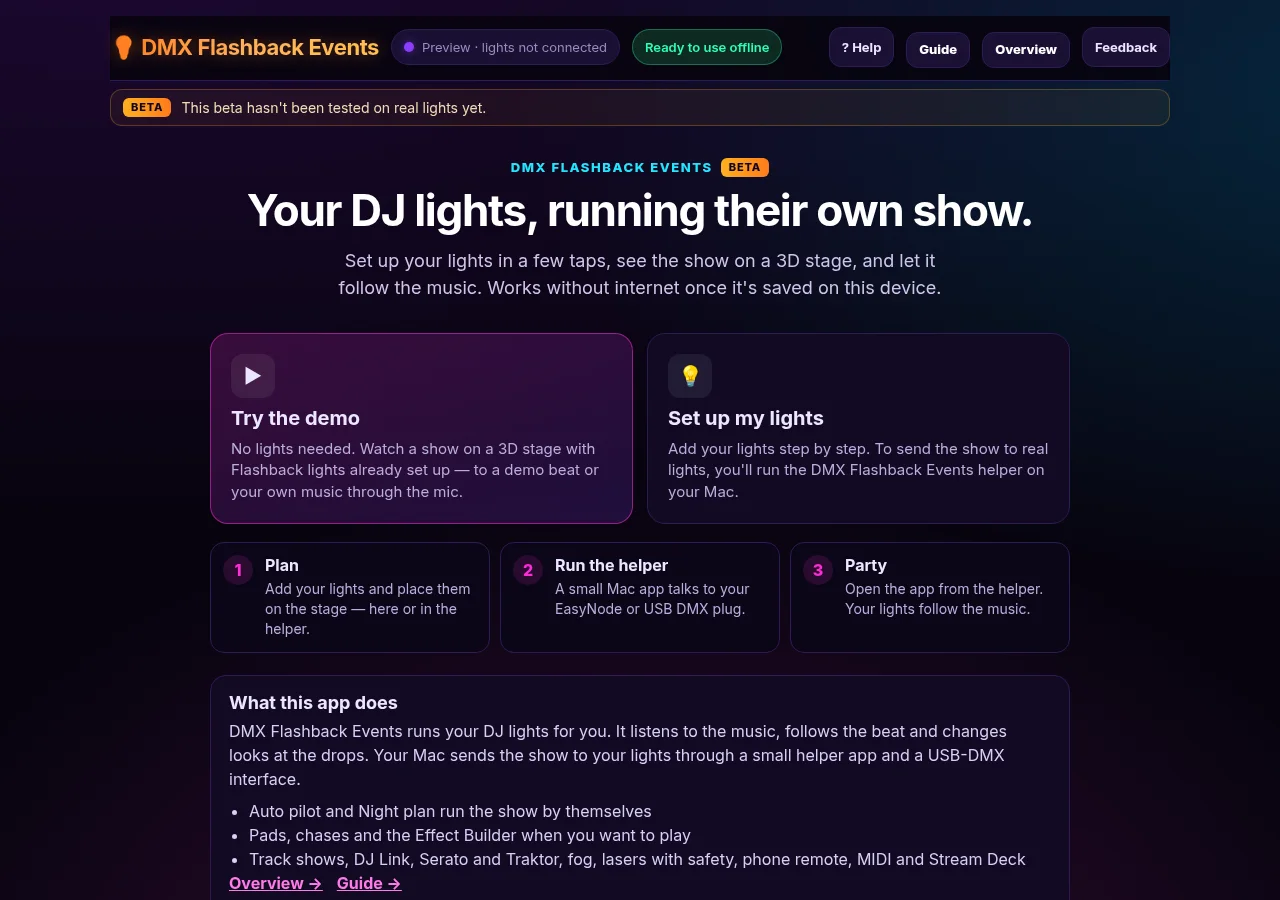
New here? Tap Try the demo on the start screen to see a show on a 3D stage with no lights plugged in, then tap ? Help → Show me around for a short tour.
Easy Setup and Built-In Flashback Lights
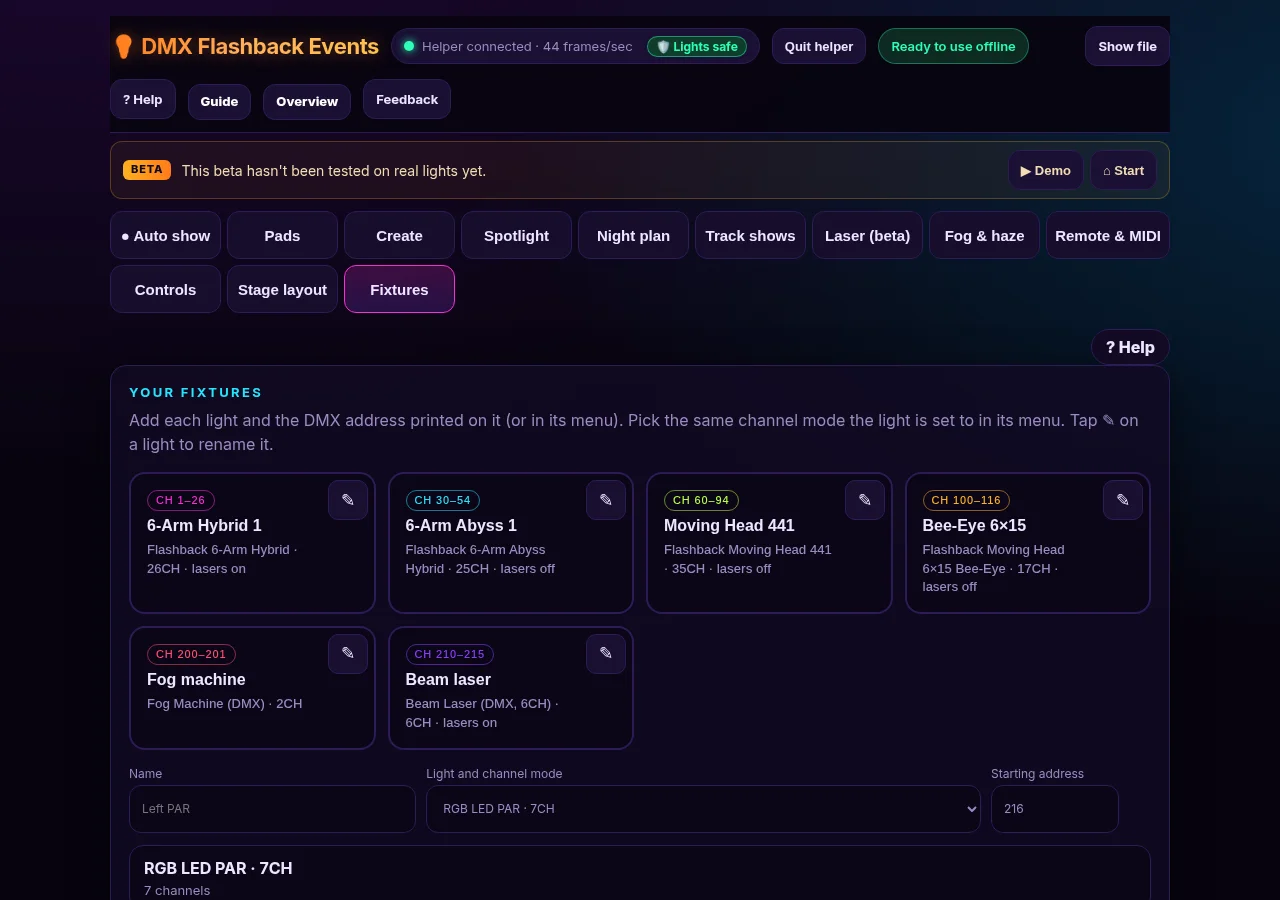
A step-by-step setup walks you through picking your DMX interface, adding each light and its channel mode, and typing the DMX address shown on the light’s own display. The app warns you if two lights overlap, and Find flashes one light at a time so you know you have the right one.
Our Flashback lights are built in and ready to go: the 6-Arm Hybrid and the 6-Arm Abyss Hybrid, the Moving Head 441 and the Bee-Eye 6×15. There are also generic pars, dimmers, moving heads, fog machines, hazers and DMX lasers. For other lights, import a grandMA2 (.xml) or Avolites (.r20 / .d4) profile from the maker.
Auto Pilot and Night Plan
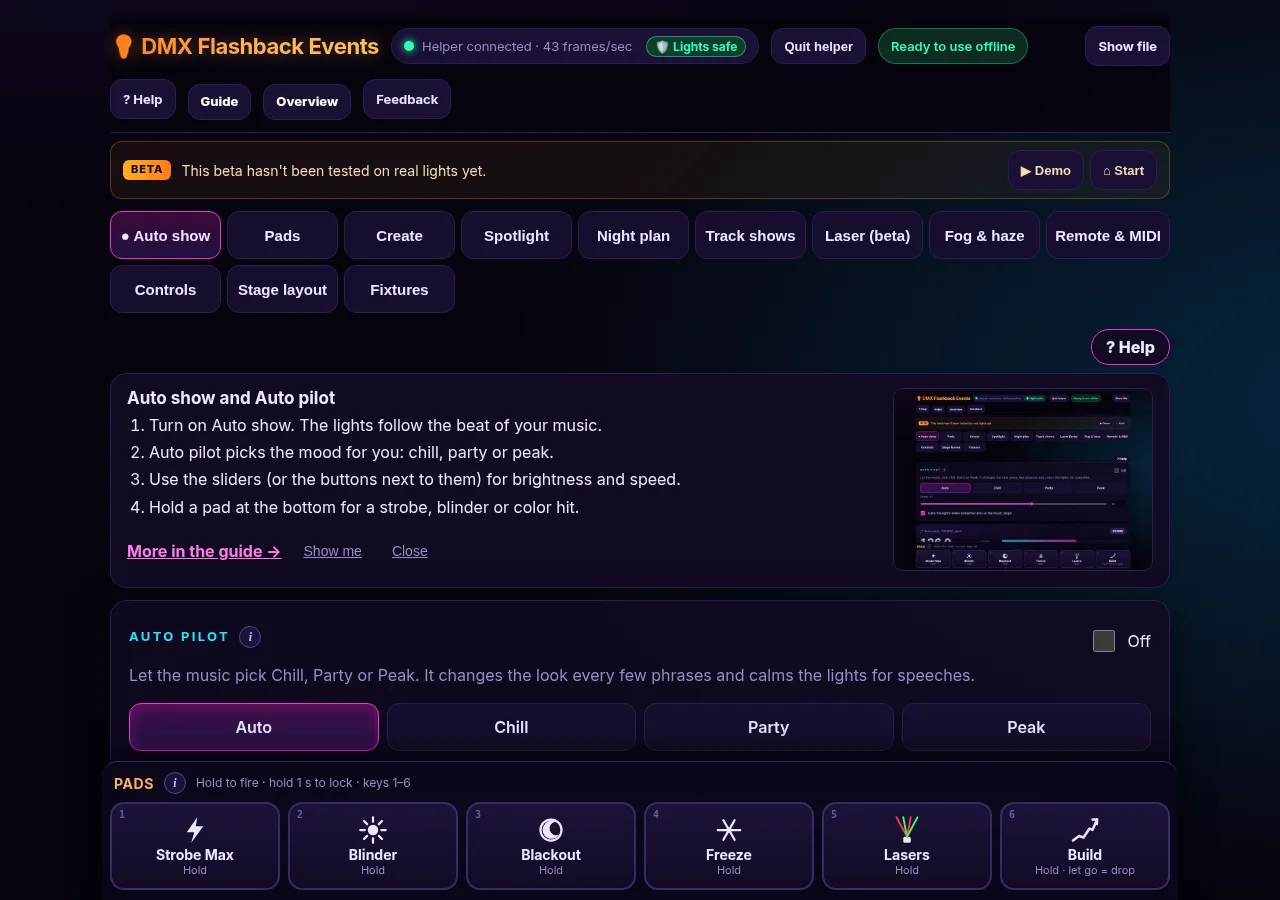
Turn on Auto show and the lights follow the beat. Auto pilot picks the mood from the music (chill, party or peak), changes the look every few phrases, and calms down for speeches.
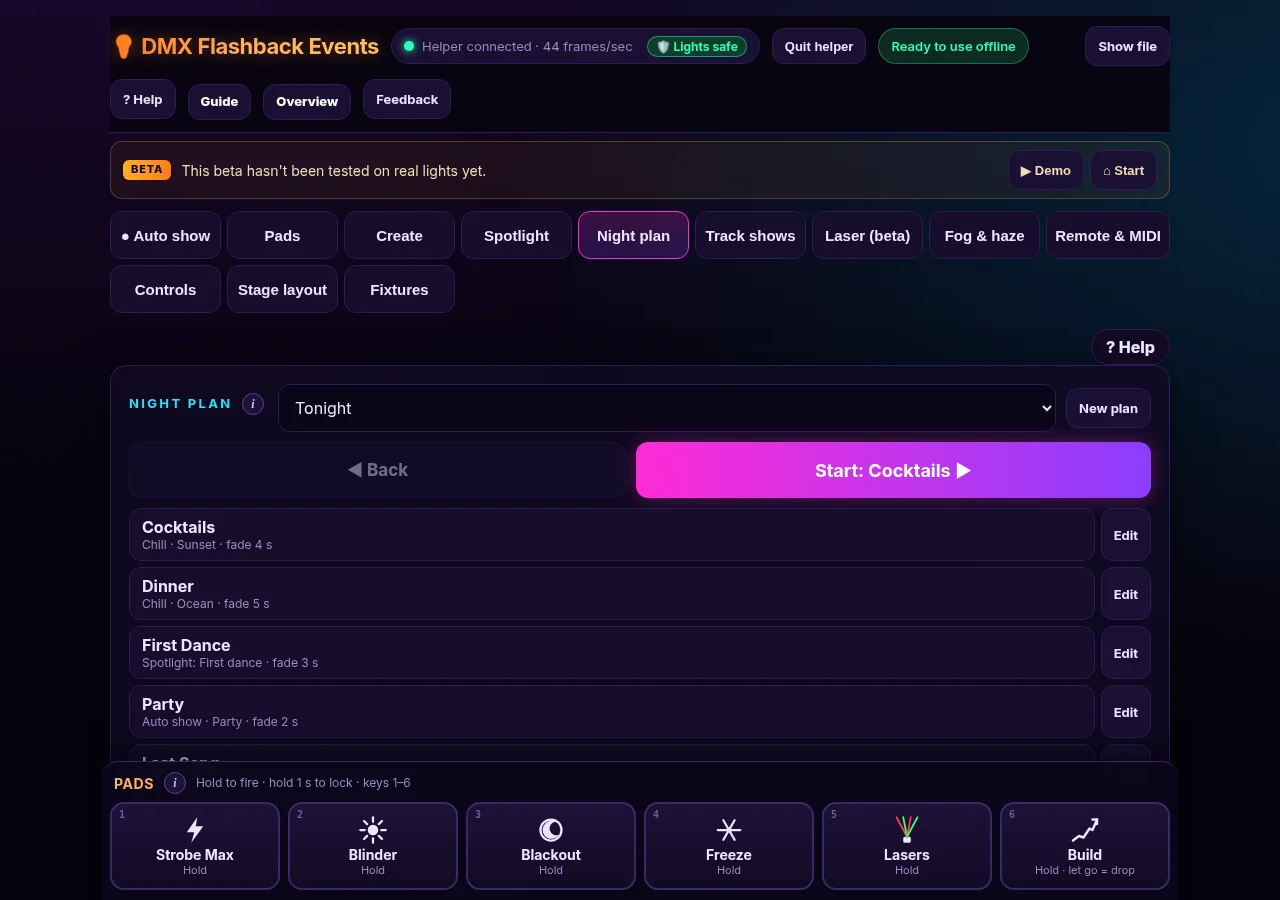
Night plan lets you add the moments of your night, like dinner, first dance, party and last song, and give each one a look, a scene or Auto pilot. Tap Next when the moment comes, or let it move on at each drop.
Pads, Chases and the Effect Builder
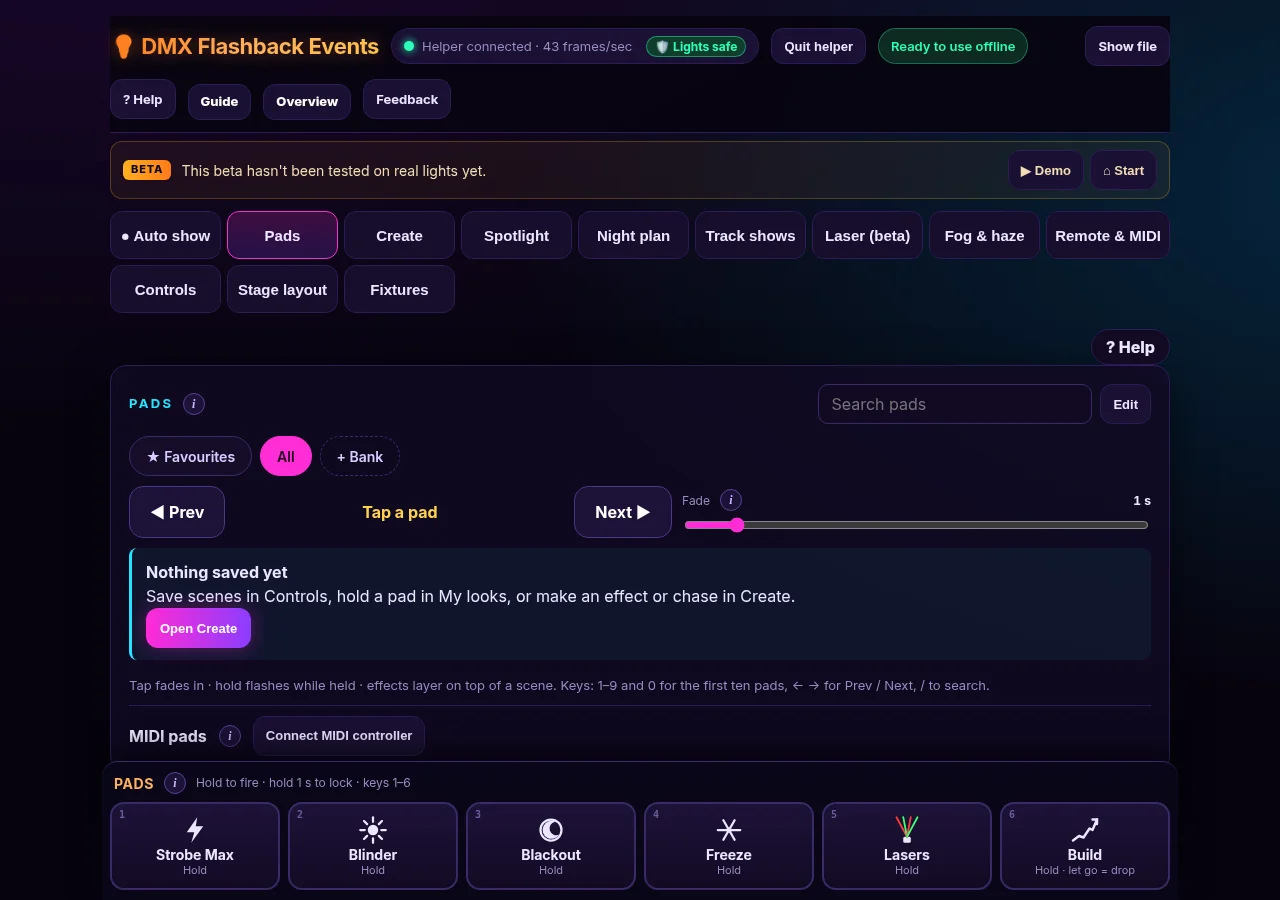
The pad bar sits at the bottom of every screen. Hold a pad for a strobe, blinder, blackout or laser hit, let go and the show carries on. Hold for one second to lock it on. Save what you see as a scene, put scenes in a row as a chase that steps on the beat, or tap Make my looks to build a set of looks for your lights in one tap. On the Create tab, the Effect Builder lets you pick an effect like a wave or color chase, choose the lights or groups, and drag the sliders.
Timeline Shows Synced to Your Tracks
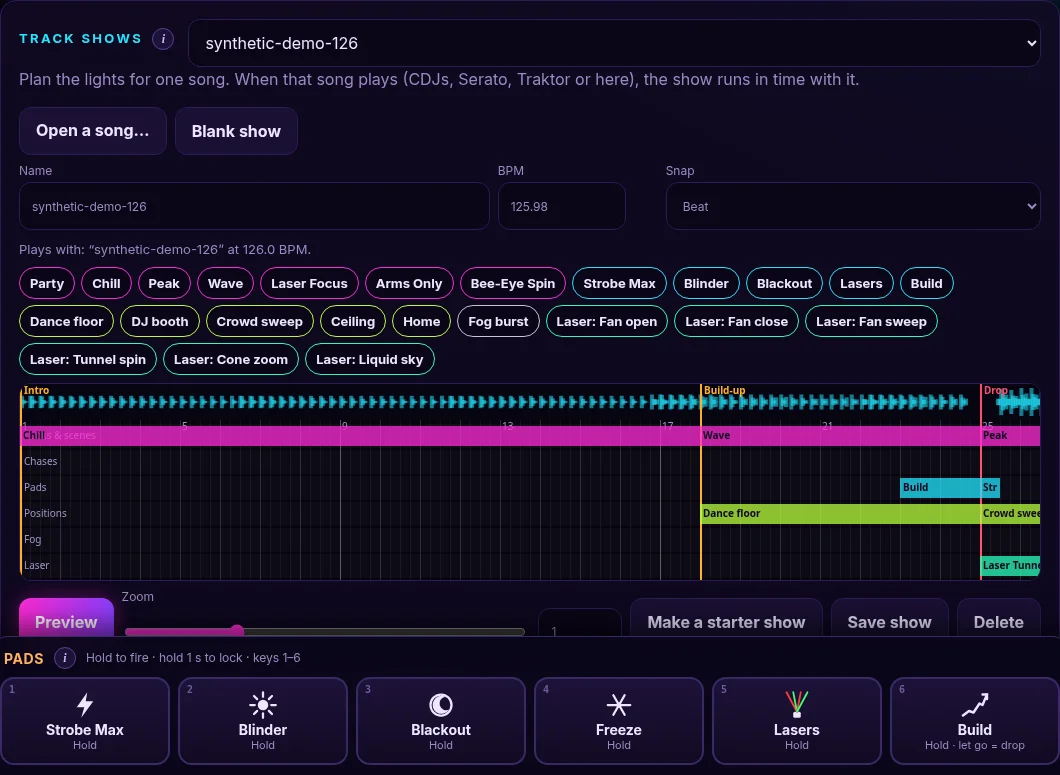
Open a song in Track shows and the app finds the tempo, the first beat, the build-ups, drops and breakdowns. The song stays on your computer. Tap Make a starter show, or drag looks, scenes, chases, pads, positions, fog and laser looks onto the lanes. Blocks snap to the beat, bar or phrase. Link the show to a deck’s track over DJ Link, or play the same song in Serato or Traktor, and it runs in time by itself.
DJ Link, Serato and Traktor
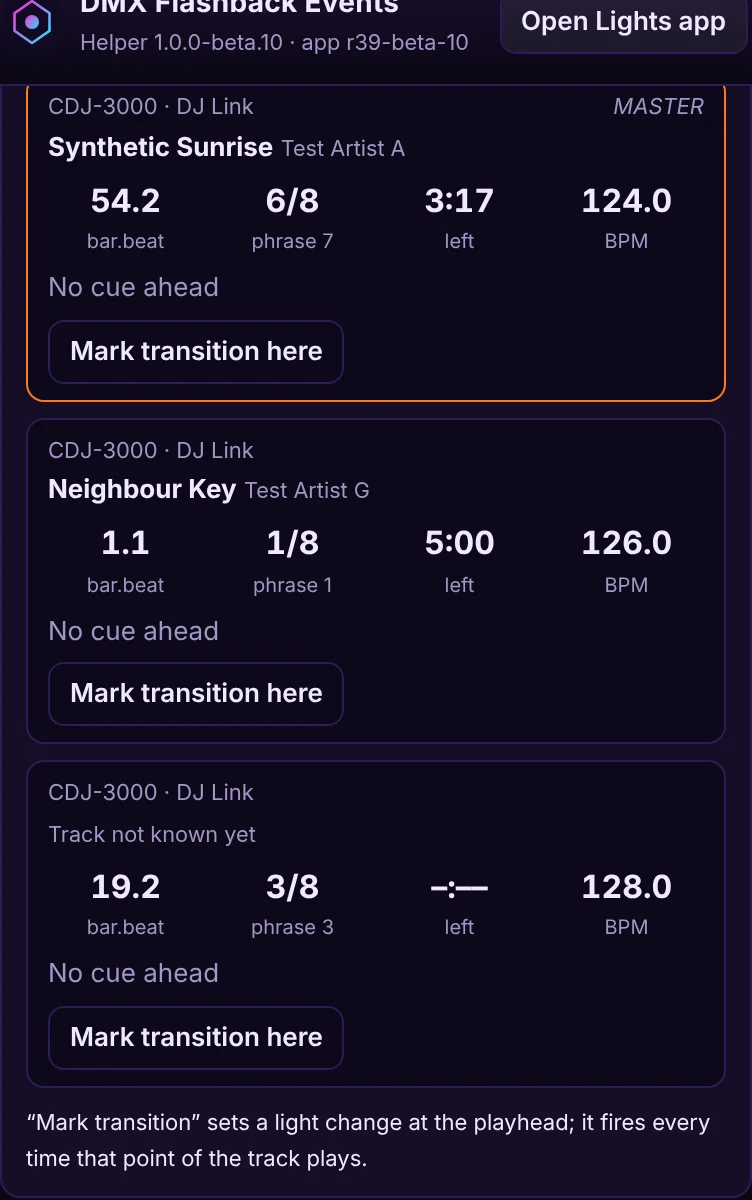
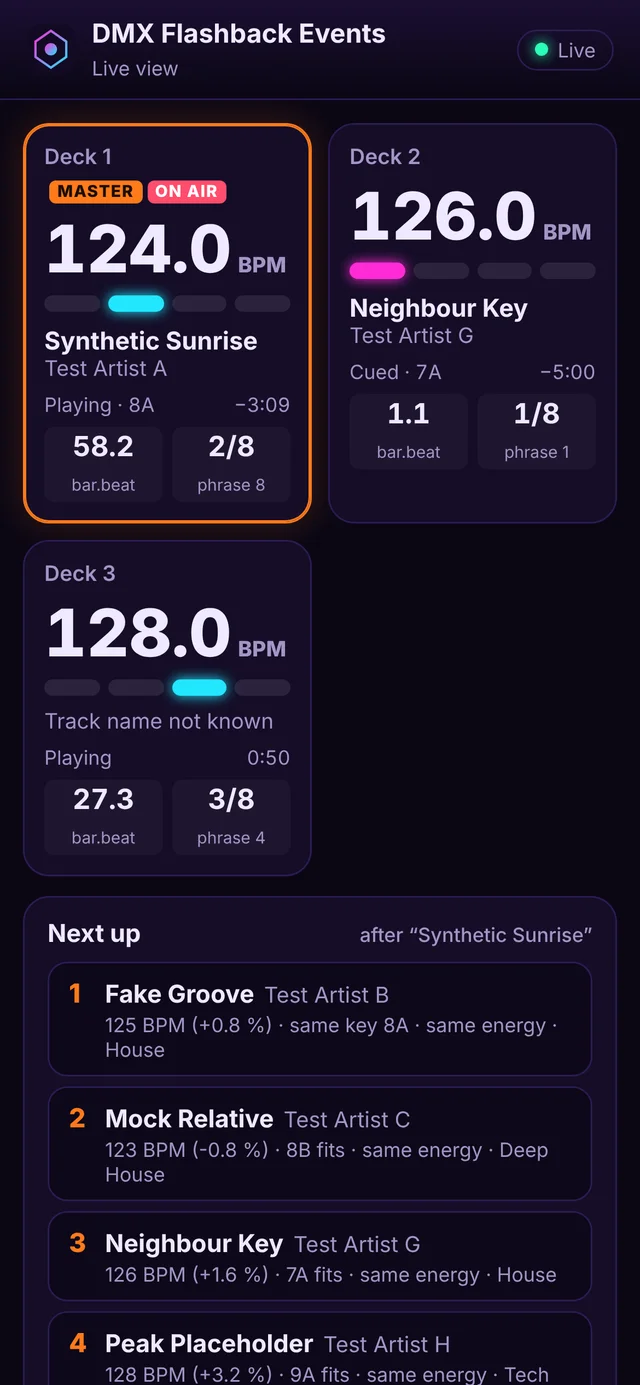
The helper locks to your Pioneer CDJs or XDJs over DJ Link and shows each deck’s BPM, beat, phrase and time left, with the lights following the master deck. Serato and Traktor are supported through the helper’s Music sources, tempo can also come from MIDI clock, or the app can simply listen through the mic. Pick your rekordbox library export in the helper to see track names and next-song ideas: same key, close BPM, same energy.
Room Setup and 3D Aiming
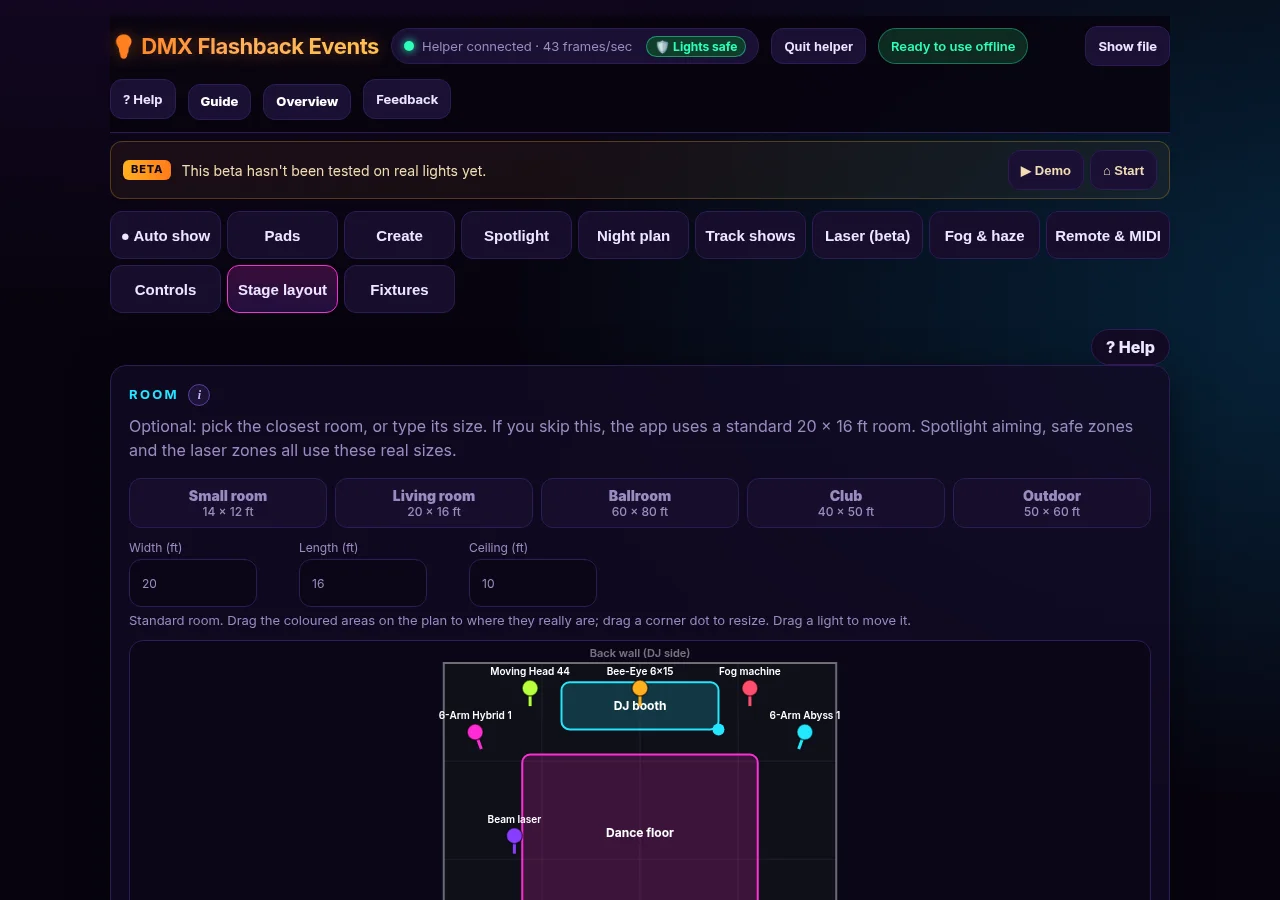
Pick a room size, drag each light to where it really stands, and choose whether it sits on the floor, on a truss or hangs upside down so moving heads aim the right way. Point check confirms a moving head really points where the app thinks it does, and position presets like Dance floor, DJ booth, Crowd sweep and Ceiling give your moving heads places to aim.
Lasers With Safety Built In
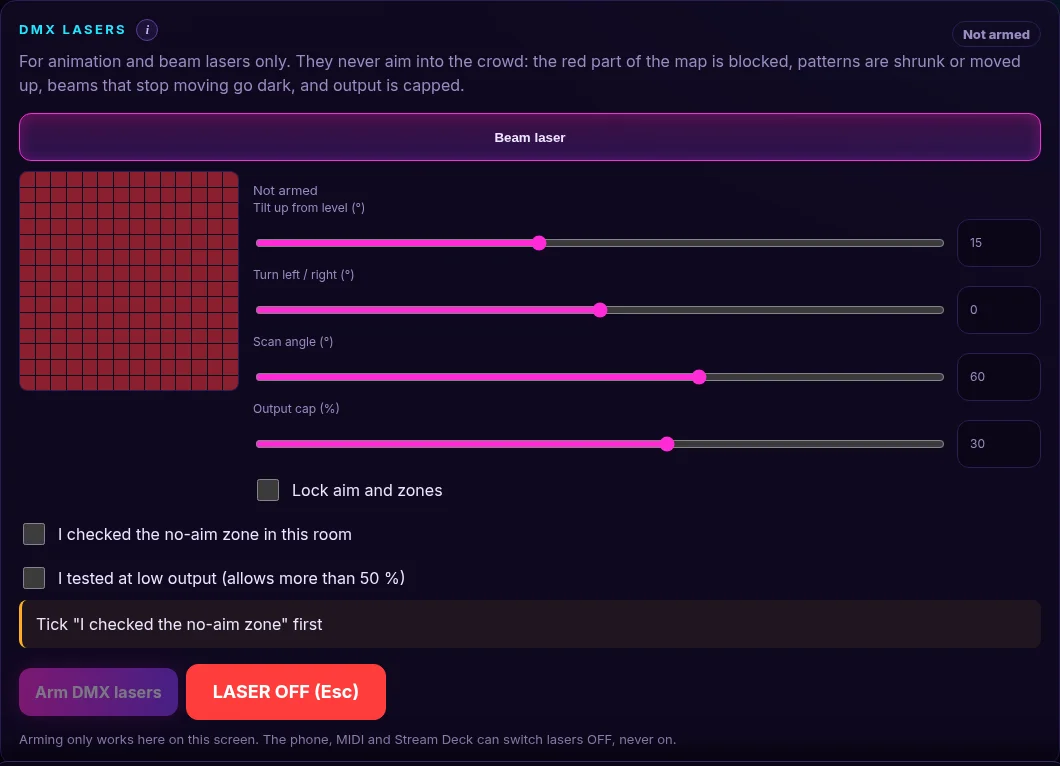
Lasers stay off until you arm them yourself on the app screen. Beams stay above a safe height (3 m, about 10 ft, by default), power is capped until you confirm you tested at low power, and LASER OFF or the Esc key stops every laser at once. DMX beam and animation lasers also get a no-aim zone over the crowd and a beam that blanks if it stops moving for one second. No remote, MIDI controller or phone can ever arm a laser.
Fog, Only When the Venue Allows It
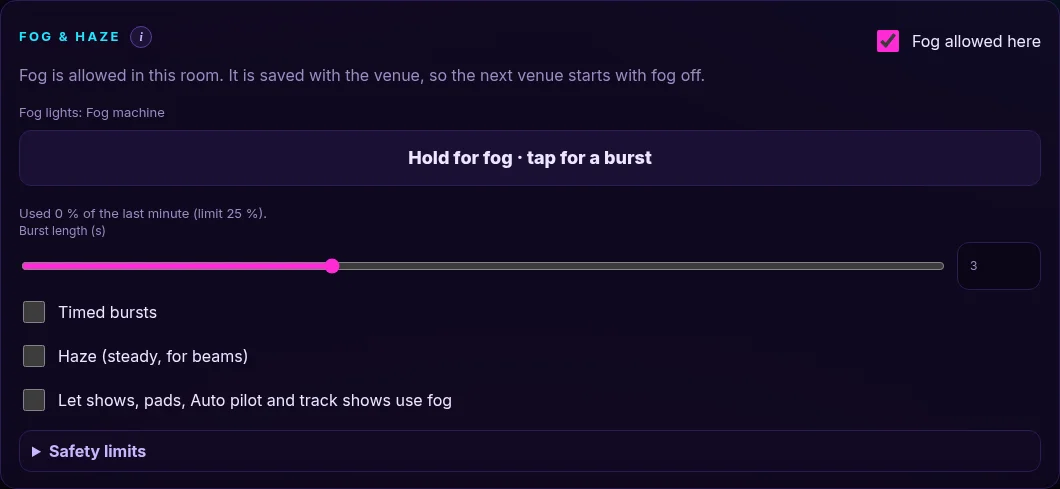
Fog can set off smoke alarms, so it starts off. Turn on Fog allowed here for each venue, then hold the big button for fog or tap it for a short burst. Safety limits stop bursts that run too long and too much fog in any minute, and shows, pads and Auto pilot only use fog if you allow it.
Phone View, MIDI and Stream Deck
Turn on Live view in the helper, scan the QR code and type the PIN to see each deck, the counters, time left and the next songs on your phone. With Allow control from the phone (its own PIN), the phone becomes a remote for pads, scenes, Blackout, Auto pilot and LASER OFF. You can also learn any button on a MIDI controller, or add Stream Deck buttons with one copied link.
Lights That Work With the App
These Flashback lights are built into DMX Flashback Events, so you just pick the model and channel mode and set the address:
- 150W 6-Arm Moving Head DJ Light with LED Halo (built in as the 6-Arm Hybrid, 26CH mode)
- 150W 6-Arm Moving Head DJ Light (built in as the 6-Arm Hybrid, 24CH mode)
- 120W 6 Arm Moving Head DJ Light, Disco Ball Effect (built in as the 6-Arm Abyss Hybrid)
- 120W Beam Moving Head DJ Light (built in as the Moving Head 441)
- 6 Bee Eye Moving Head DJ Light (built in as the Bee-Eye 6×15)
Most other DMX lights work with a generic profile or an imported grandMA2 or Avolites file. Adding haze? See our 500W fog machine, and browse the rest of the lineup in our shop.
FAQ
Do I need internet at the gig?
No. Once opened, the app works offline, and the helper has its own copy.
Which lights work?
Flashback lights are built in. Most DMX lights work with a generic profile or an imported grandMA2 or Avolites file.
Is it safe with lasers?
Lasers stay off until you arm them on the app screen, never aim below the safe height, and stop with LASER OFF or Esc.
Does it work with my DJ software?
Pioneer DJ Link (CDJs and XDJs), Serato and Traktor, plus MIDI clock. Or just let it listen through the mic.
Is my music sent anywhere?
No. Songs you open for Track shows are analyzed on your computer, and your rekordbox library stays on your Mac.
Good to know: DMX Flashback Events is in beta. Test your show with your own lights before the guests arrive. The full step-by-step help lives in the DMX Flashback Events guide.
Try It Before Your Next Gig
It is free during the beta, so there is nothing to lose. Open the app, tap Try the demo, then download the helper and add your lights. When you are ready for the details, the guide walks through every screen in short steps. New to DMX? Start with our beginner how-to: DMX Lighting for Beginners. Found a bug or have an idea? Tap Feedback in the app.
Follow along for light shows, mixes and app updates: Instagram @dancepartylights, TikTok @yourpartylighting, and YouTube Flashback Events.
